---
ms.localizationpriority: medium
ms.mktglfcycl: deploy
ms.pagetype: security
description: Use the Group Policy setting, Set a default associations configuration file, to set the default browser for your company devices running Windows 10.
author: dansimp
ms.prod: ie11
ms.assetid: f486c9db-0dc9-4cd6-8a0b-8cb872b1d361
ms.reviewer:
audience: itpro
manager: dansimp
ms.author: dansimp
title: Set the default browser using Group Policy (Internet Explorer 11 for IT Pros)
ms.sitesec: library
ms.date: 07/27/2017
---
# Set the default browser using Group Policy
You can use the Group Policy setting, **Set a default associations configuration file**, to set the default browser for your company devices running Windows 10.
**To set the default browser as Internet Explorer 11**
1. Open your Group Policy editor and go to the **Computer Configuration\Administrative Templates\\Windows Components\\File Explorer\\Set a default associations configuration file** setting.
Turning this setting on also requires you to create and store a default associations configuration file, locally or on a network share. For more information about creating this file, see [Export or Import Default Application Associations]( https://go.microsoft.com/fwlink/p/?LinkId=618268).
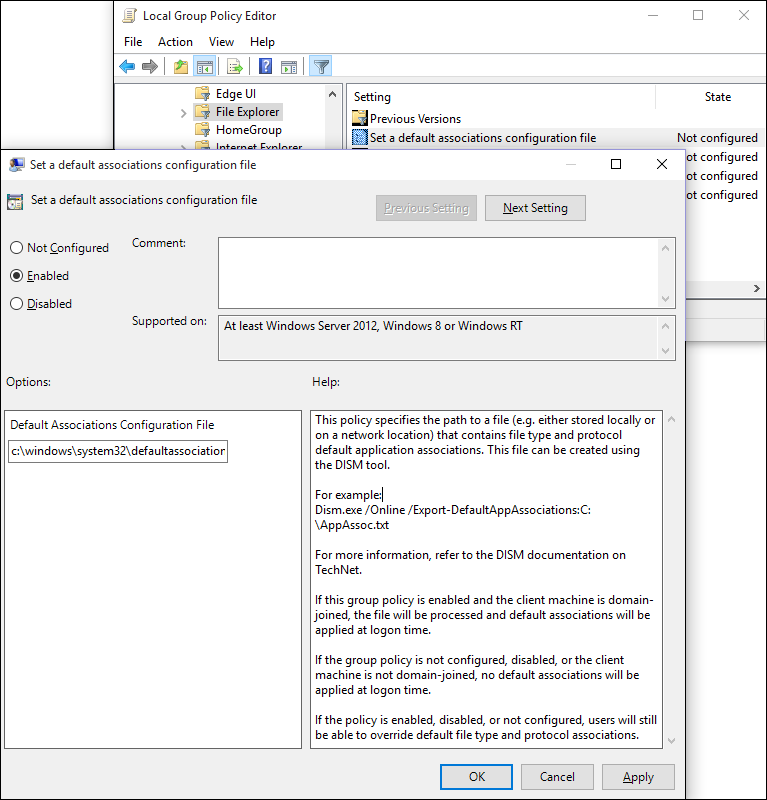
2. Click **Enabled**, and then in the **Options** area, type the location to your default associations configuration file.
If this setting is turned on and your employee's device is domain-joined, this file is processed and default associations are applied at logon. If this setting isn't configured or is turned off, or if your employee's device isn't domain-joined, no default associations are applied at logon.
Your employees can change this setting by changing the Internet Explorer default value from the **Set Default Programs** area of the Control Panel.