---
title: Onboard Windows 10 machines using System Center Configuration Manager
description: Use System Center Configuration Manager to deploy the configuration package on machines so that they are onboarded to the service.
keywords: onboard machines using sccm, machine management, configure Windows ATP machines, configure Microsoft Defender Advanced Threat Protection machines, sccm
search.product: eADQiWindows 10XVcnh
search.appverid: met150
ms.prod: w10
ms.mktglfcycl: deploy
ms.sitesec: library
ms.pagetype: security
ms.author: macapara
author: mjcaparas
ms.localizationpriority: medium
manager: dansimp
audience: ITPro
ms.collection: M365-security-compliance
ms.topic: article
ms.date: 12/11/2018
---
# Onboard Windows 10 machines using System Center Configuration Manager
**Applies to:**
- [Microsoft Defender Advanced Threat Protection (Microsoft Defender ATP)](https://go.microsoft.com/fwlink/p/?linkid=2069559)
- System Center 2012 Configuration Manager or later versions
>Want to experience Microsoft Defender ATP? [Sign up for a free trial.](https://www.microsoft.com/microsoft-365/windows/microsoft-defender-atp?ocid=docs-wdatp-configureendpointssccm-abovefoldlink)
## Onboard Windows 10 machines using System Center Configuration Manager (current branch) version 1606
System Center Configuration Manager (SCCM) (current branch) version 1606, has UI integrated support for configuring and managing Microsoft Defender ATP on machines. For more information, see Support for Microsoft Defender Advanced Threat Protection service.
>[!NOTE]
> If you’re using SCCM client version 1606 with server version 1610 or above, you must upgrade the client version to match the server version.
> Starting with version 1606 of Configuration Manager, see [Microsoft Defender Advanced Threat Protection](https://docs.microsoft.com/sccm/protect/deploy-use/windows-defender-advanced-threat-protection) for ATP configuration.
## Onboard Windows 10 machines using System Center Configuration Manager earlier versions
You can use existing System Center Configuration Manager functionality to create a policy to configure your machines. This is supported in the following System Center Configuration Manager versions:
- System Center 2012 Configuration Manager
- System Center 2012 R2 Configuration Manager
- System Center Configuration Manager (current branch), version 1511
- System Center Configuration Manager (current branch), version 1602
### Onboard machines using System Center Configuration Manager
1. Open the SCCM configuration package .zip file (*WindowsDefenderATPOnboardingPackage.zip*) that you downloaded from the service onboarding wizard. You can also get the package from [Microsoft Defender Security Center](https://securitycenter.windows.com/):
a. In the navigation pane, select **Settings** > **Onboarding**.
b. Select Windows 10 as the operating system.
c. In the **Deployment method** field, select **System Center Configuration Manager 2012/2012 R2/1511/1602**.
d. Click **Download package**, and save the .zip file.
2. Extract the contents of the .zip file to a shared, read-only location that can be accessed by the network administrators who will deploy the package. You should have a file named *WindowsDefenderATPOnboardingScript.cmd*.
3. Deploy the package by following the steps in the [Packages and Programs in Configuration Manager](https://docs.microsoft.com/sccm/apps/deploy-use/packages-and-programs) topic.
a. Choose a predefined device collection to deploy the package to.
> [!NOTE]
> Microsoft Defender ATP doesn't support onboarding during the [Out-Of-Box Experience (OOBE)](https://answers.microsoft.com/en-us/windows/wiki/windows_10/how-to-complete-the-windows-10-out-of-box/47e3f943-f000-45e3-8c5c-9d85a1a0cf87) phase. Make sure users complete OOBE after running Windows installation or upgrading.
>[!TIP]
> After onboarding the machine, you can choose to run a detection test to verify that an machine is properly onboarded to the service. For more information, see [Run a detection test on a newly onboarded Microsoft Defender ATP machine](run-detection-test.md).
### Configure sample collection settings
For each machine, you can set a configuration value to state whether samples can be collected from the machine when a request is made through Microsoft Defender Security Center to submit a file for deep analysis.
You can set a compliance rule for configuration item in System Center Configuration Manager to change the sample share setting on a machine.
This rule should be a *remediating* compliance rule configuration item that sets the value of a registry key on targeted machines to make sure they’re complaint.
The configuration is set through the following registry key entry:
```
Path: “HKLM\SOFTWARE\Policies\Microsoft\Windows Advanced Threat Protection”
Name: "AllowSampleCollection"
Value: 0 or 1
```
Where:
Key type is a D-WORD.
Possible values are:
- 0 - doesn't allow sample sharing from this machine
- 1 - allows sharing of all file types from this machine
The default value in case the registry key doesn’t exist is 1.
For more information about System Center Configuration Manager Compliance see [Get started with compliance settings in System Center Configuration Manager](https://docs.microsoft.com/sccm/compliance/get-started/get-started-with-compliance-settings).
## Offboard machines using System Center Configuration Manager
For security reasons, the package used to Offboard machines will expire 30 days after the date it was downloaded. Expired offboarding packages sent to an machine will be rejected. When downloading an offboarding package you will be notified of the packages expiry date and it will also be included in the package name.
> [!NOTE]
> Onboarding and offboarding policies must not be deployed on the same machine at the same time, otherwise this will cause unpredictable collisions.
1. Get the offboarding package from [Microsoft Defender Security Center](https://securitycenter.windows.com/):
a. In the navigation pane, select **Settings** > **Offboarding**.
b. Select Windows 10 as the operating system.
c. In the **Deployment method** field, select **System Center Configuration Manager 2012/2012 R2/1511/1602**.
d. Click **Download package**, and save the .zip file.
2. Extract the contents of the .zip file to a shared, read-only location that can be accessed by the network administrators who will deploy the package. You should have a file named *WindowsDefenderATPOffboardingScript_valid_until_YYYY-MM-DD.cmd*.
3. Deploy the package by following the steps in the [Packages and Programs in Configuration Manager](https://docs.microsoft.com/sccm/apps/deploy-use/packages-and-programs) topic.
a. Choose a predefined device collection to deploy the package to.
> [!IMPORTANT]
> Offboarding causes the machine to stop sending sensor data to the portal but data from the machine, including reference to any alerts it has had will be retained for up to 6 months.
### Monitor machine configuration
Monitoring with SCCM consists of two parts:
1. Confirming the configuration package has been correctly deployed and is running (or has successfully run) on the machines in your network.
2. Checking that the machines are compliant with the Microsoft Defender ATP service (this ensures the machine can complete the onboarding process and can continue to report data to the service).
**To confirm the configuration package has been correctly deployed:**
1. In the SCCM console, click **Monitoring** at the bottom of the navigation pane.
2. Click **Overview** and then **Deployments**.
3. Click on the deployment with the package name.
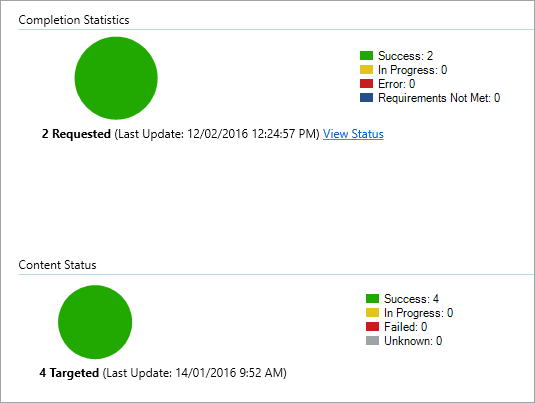
4. Review the status indicators under **Completion Statistics** and **Content Status**.
If there are failed deployments (machines with **Error**, **Requirements Not Met**, or **Failed statuses**), you may need to troubleshoot the machines. For more information see, [Troubleshoot Microsoft Defender Advanced Threat Protection onboarding issues](troubleshoot-onboarding.md).
**Check that the machines are compliant with the Microsoft Defender ATP service:**
You can set a compliance rule for configuration item in System Center Configuration Manager to monitor your deployment.
This rule should be a *non-remediating* compliance rule configuration item that monitors the value of a registry key on targeted machines.
Monitor the following registry key entry:
```
Path: “HKLM\SOFTWARE\Microsoft\Windows Advanced Threat Protection\Status”
Name: “OnboardingState”
Value: “1”
```
For more information about System Center Configuration Manager Compliance see [Get started with compliance settings in System Center Configuration Manager](https://docs.microsoft.com/sccm/compliance/get-started/get-started-with-compliance-settings).
## Related topics
- [Onboard Windows 10 machines using Group Policy](configure-endpoints-gp.md)
- [Onboard Windows 10 machines using Mobile Device Management tools](configure-endpoints-mdm.md)
- [Onboard Windows 10 machines using a local script](configure-endpoints-script.md)
- [Onboard non-persistent virtual desktop infrastructure (VDI) machines](configure-endpoints-vdi.md)
- [Run a detection test on a newly onboarded Microsoft Defender ATP machine](run-detection-test.md)
- [Troubleshoot Microsoft Defender Advanced Threat Protection onboarding issues](troubleshoot-onboarding.md)