---
title: Threat & Vulnerability Management scenarios
description: Learn how to use Threat & Vulnerability Management in the context of scenarios that Security Administrators encounter when you collaborate with IT Administrators and SecOps as you protect your organization from cybersecurity threats.
keywords: mdatp-tvm scenarios, mdatp, tvm, tvm scenarios, reduce threat & vulnerability exposure, reduce threat and vulnerability, improve security configuration, increase configuration score, increase threat & vulnerability configuration score, configuration score, exposure score, security controls
search.product: eADQiWindows 10XVcnh
search.appverid: met150
ms.prod: w10
ms.mktglfcycl: deploy
ms.sitesec: library
ms.pagetype: security
ms.author: dolmont
author: DulceMontemayor
ms.localizationpriority: medium
manager: dansimp
audience: ITPro
ms.collection: M365-security-compliance
ms.topic: article
---
# Threat & Vulnerability Management scenarios
**Applies to:**
- [Microsoft Defender Advanced Threat Protection (Microsoft Defender ATP)](https://go.microsoft.com/fwlink/p/?linkid=2069559)
## Before you begin
Ensure that your machines:
- Are onboarded to Microsoft Defender Advanced Threat Protection
- Run with Windows 10 1709 (Fall Creators Update) or later
>[!NOTE]
>Threat & Vulnerability Management can also scan machines that run on Windows 7 and Windows Server 2019 operating systems and detects vulnerabilities addressed in patch Tuesday.
- Have the following mandatory updates installed and deployed in your network to boost your vulnerability assessment detection rates:
> Release | Security update KB number and link
> :---|:---
> RS3 customers | [KB4493441](https://support.microsoft.com/help/4493441/windows-10-update-kb4493441) and [KB 4516071](https://support.microsoft.com/help/4516071/windows-10-update-kb4516071)
> RS4 customers| [KB4493464](https://support.microsoft.com/help/4493464) and [KB 4516045](https://support.microsoft.com/help/4516045/windows-10-update-kb4516045)
> RS5 customers | [KB 4516077](https://support.microsoft.com/help/4516077/windows-10-update-kb4516077)
> 19H1 customers | [KB 4512941](https://support.microsoft.com/help/4512941/windows-10-update-kb4512941)
- Are onboarded to Microsoft Intune and System Center Configuration Manager (SCCM). If you are use SCCM, update your console to the latest May version 1905
- Have at least one security recommendation that can be viewed in the machine page
- Are tagged or marked as co-managed
## Reduce your threat and vulnerability exposure
Threat & Vulnerability Management introduces a new exposure score metric, which visually represents how exposed your machines are to imminent threats.
The exposure score is continuously calculated on each device in the organization and influenced by the following factors:
- Weaknesses, such as vulnerabilities discovered on the device
- External and internal threats such as public exploit code and security alerts
- Likelihood of the device to get breached given its current security posture
- Value of the device to the organization given its role and content
The exposure score is broken down into the following levels:
- 0–29: low exposure score
- 30–69: medium exposure score
- 70–100: high exposure score
You can remediate the issues based on prioritized security recommendations to reduce the exposure score. Each software has weaknesses that are transformed into recommendations and prioritized based on risk to the organization.
To lower down your threat and vulnerability exposure:
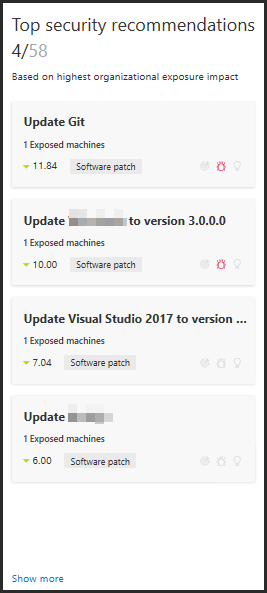
1. Review the **Top security recommendations** from your **Threat & Vulnerability Management dashboard**, and select the first item on the list. The **Security recommendation** page opens.
>>
>[!NOTE]
> There are two types of recommendations:
> - Security update which refers to recommendations that require a package installation
> - Configuration change which refers to recommendations that require a registry or GPO modification
> Always prioritize recommendations that are associated with ongoing threats. These recommendations are marked with the threat insight  icon and possible active alert  icon.
2. The **Security recommendations** page shows the list of items to remediate. Select the security recommendation that you need to investigate. When you select a recommendation from the list, a fly-out panel will display a description of what you need to remediate, number of vulnerabilities, associated exploits in machines, number of exposed machines and their machine names, business impact, and a list of CVEs. Click **Open software page** option from the flyout panel. 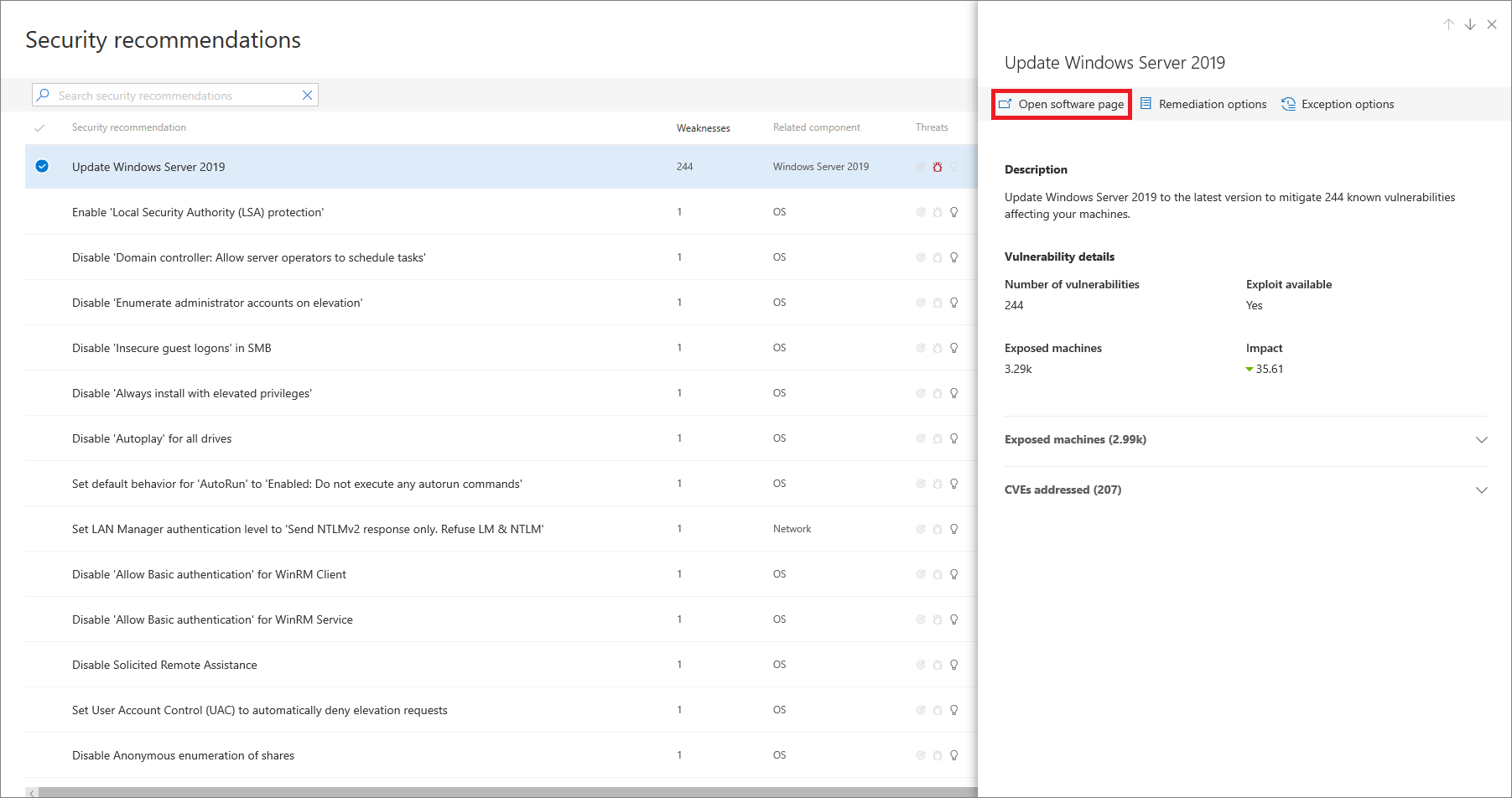
3. Click **Installed machines** and select the affected machine from the list to open the flyout panel with the relevant machine details, exposure and risk levels, alert and incident activities. 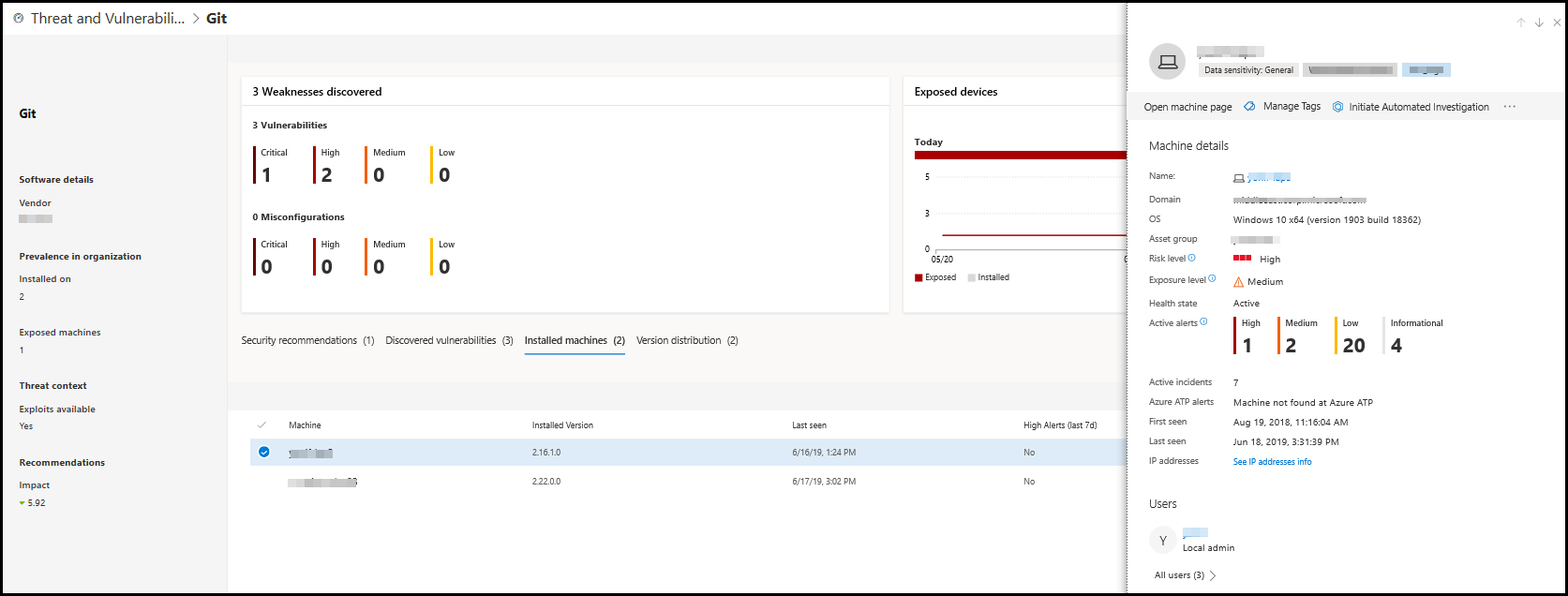
4. Click **Open machine page** to connect to the machine and apply the selected recommendation. See [Investigate machines in the Microsoft Defender ATP Machines list](investigate-machines.md) for details. 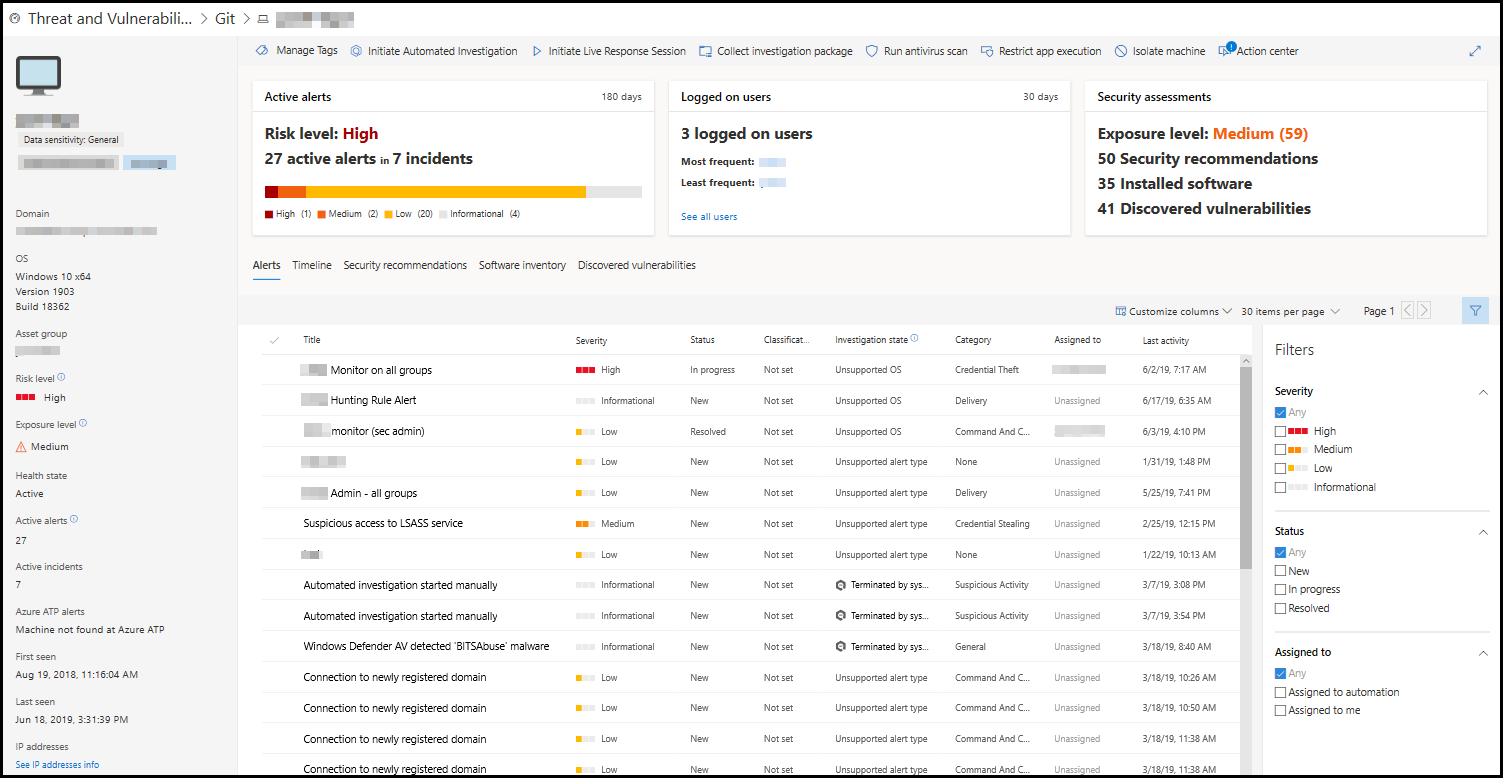
5. Allow a few hours for the changes to propagate in the system.
6. Review the machine **Security recommendation** tab again. The recommendation you've chosen to remediate is removed from the security recommendation list, and the exposure score decreases.
## Improve your security configuration
>[!NOTE]
> Secure score is now part of Threat & Vulnerability Management as [configuration score](configuration-score.md). The secure score page is available for a few weeks. View the [secure score](https://securitycenter.windows.com/securescore) page.
You can improve your security configuration when you remediate issues from the security recommendations list. As you do so, your configuration score improves, which means your organization becomes more resilient against cybersecurity threats and vulnerabilities.
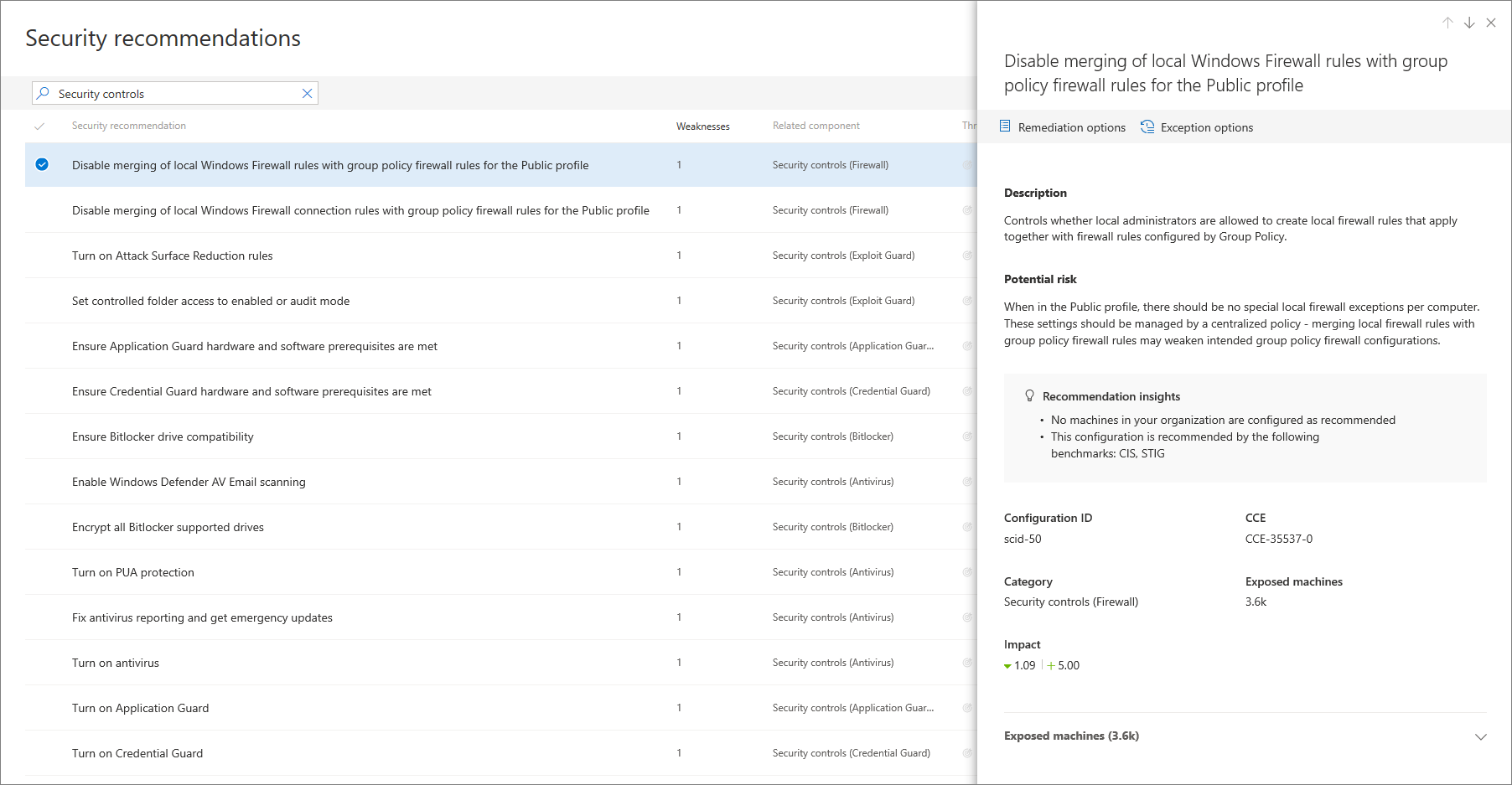
1. From the Configuration score widget, select **Security controls**. The **Security recommendations** page opens and shows the list of issues related to security controls.
>
2. Select the first item on the list. The flyout panel will open with a description of the security controls issue, a short description of the potential risk, insights, configuration ID, exposed machines, and business impact. Click **Remediation options**.
3. Read the description to understand the context of the issue and what to do next. Select a due date, add notes, and select **Export all remediation activity data to CSV** so you can attach it to the email that you can send to your IT Administrator for follow-up.
>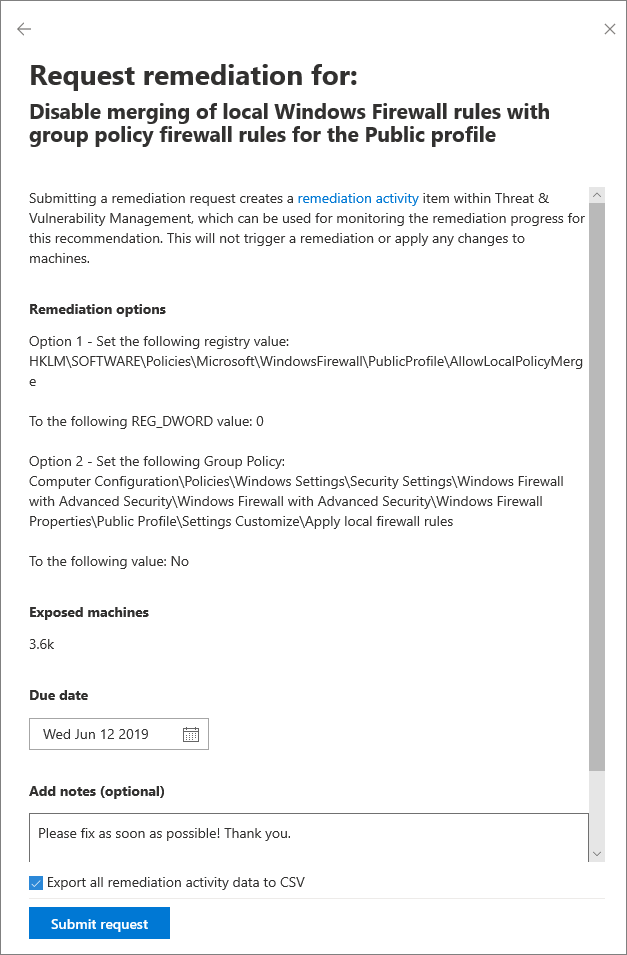.
>You will see a confirmation message that the remediation task has been created.
>
4. Save your CSV file.

5. Send a follow-up email to your IT Administrator and allow the time that you have allotted for the remediation to propagate in the system.
6. Review the machine **Configuration score** widget again. The number of the security controls issues will decrease. When you click **Security controls** to go back to the **Security recommendations** page, the item that you have addressed will not be listed there anymore, and your configuration score should increase.
## Request a remediation
>[!NOTE]
>To use this capability, enable your Microsoft Intune connections. Navigate to **Settings** > **General** > **Advanced features**. Scroll down and look for **Microsoft Intune connection**. By default, the toggle is turned off. Turn your **Microsoft Intune connection** toggle on.
The Threat & Vulnerability Management capability in Microsoft Defender ATP bridges the gap between Security and IT Administrators through the remediation request workflow.
Security Administrators like you can request for the IT Administrator to remediate a vulnerability from the **Security recommendation** pages to Intune.
1. Click a security recommendation you would like to request remediation for, and then click **Remediation options**.
2. Select **Open a ticket in Intune (for AAD joined devices)**, select a due date, and add optional notes for the IT Administrator. Click **Submit request**.
3. Notify your IT Administrator about the new request and have them log into Intune to approve or reject the request and start a package deployment.
4. Go to the **Remediation** page to view the status of your remediation request.
See [Use Intune to remediate vulnerabilities identified by Microsoft Defender ATP](https://docs.microsoft.com/intune/atp-manage-vulnerabilities) for details.
>[!NOTE]
>If your request involves remediating more than 10,000 machines, we can only send 10,000 machines for remediation to Intune.
## File for exception
With Threat & Vulnerability Management, you can create exceptions for recommendations, as an alternative to a remediation request.
There are many reasons why organizations create exceptions for a recommendation. For example, if there's a business justification that prevents the company from applying the recommendation, the existence of a compensating or alternative control that provides as much protection than the recommendation would, a false positive, among other reasons.
Exceptions can be created for both *Security update* and *Configuration change* recommendations.
When an exception is created for a recommendation, the recommendation is no longer active. The recommendation state changes to **Exception**, and it no longer shows up in the security recommendations list.
1. Navigate to the **Security recommendations** page under the **Threat & Vulnerability Management** section menu.
2. Click the top-most recommendation. A flyout panel opens with the recommendation details.
3. Click **Exception options**.
4. Select your justification for the exception you need to file instead of remediating the security recommendation in question. Fill out the justification context, then set the exception duration.
5. Click **Submit**. A confirmation message at the top of the page indicates that the exception has been created.
6. Navigate to the **Remediation** page under the **Threat & Vulnerability Management** menu and click the **Exceptions** tab to view all your exceptions (current and past).
## Related topics
- [Risk-based Threat & Vulnerability Management](next-gen-threat-and-vuln-mgt.md)
- [Threat & Vulnerability Management dashboard overview](tvm-dashboard-insights.md)
- [Exposure score](tvm-exposure-score.md)
- [Configuration score](configuration-score.md)
- [Security recommendations](tvm-security-recommendation.md)
- [Remediation](tvm-remediation.md)
- [Software inventory](tvm-software-inventory.md)
- [Weaknesses](tvm-weaknesses.md)