---
title: Assign applications using roles in MDT (Windows 10)
description: This topic will show you how to add applications to a role in the MDT database and then assign that role to a computer.
ms.assetid: d82902e4-de9c-4bc4-afe0-41d649b83ce7
ms.reviewer:
manager: laurawi
ms.author: greglin
keywords: settings, database, deploy
ms.prod: w10
ms.mktglfcycl: deploy
ms.localizationpriority: medium
ms.sitesec: library
ms.pagetype: mdt
audience: itpro
author: greg-lindsay
ms.topic: article
---
# Assign applications using roles in MDT
This topic will show you how to add applications to a role in the MDT database and then assign that role to a computer. For the purposes of this topic, the application we are adding is Adobe Reader XI. In addition to using computer-specific entries in the database, you can use roles in MDT to group settings together.
## Create and assign a role entry in the database
1. On MDT01, using Deployment Workbench, in the MDT Production deployment share, expand **Advanced Configuration** and then expand **Database**.
2. In the **Database** node, right-click **Role**, select **New**, and create a role entry with the following settings:
1. Role name: Standard PC
2. Applications / Lite Touch Applications:
3. Install - Adobe Reader XI - x86
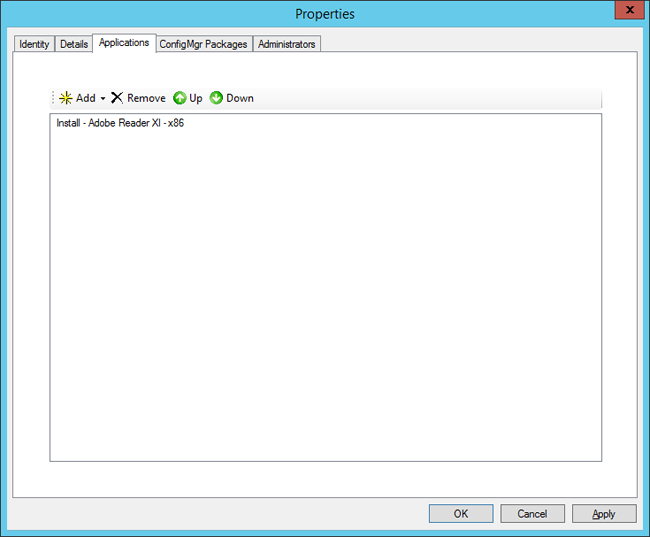
Figure 12. The Standard PC role with the application added
## Associate the role with a computer in the database
After creating the role, you can associate it with one or more computer entries.
1. Using Deployment Workbench, expand **MDT Production**, expand **Advanced Configuration**, expand **Database**, and select **Computers**.
2. In the **Computers** node, double-click the **PC00075** entry, and add the following setting:
- Roles: Standard PC
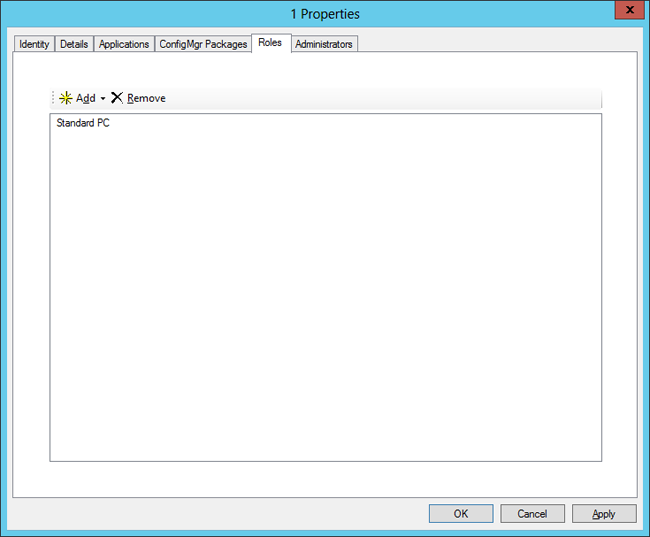
Figure 13. The Standard PC role added to PC00075 (having ID 1 in the database).
## Verify database access in the MDT simulation environment
When the database is populated, you can use the MDT simulation environment to simulate a deployment. The applications are not installed, but you can see which applications would be installed if you did a full deployment of the computer.
1. On PC0001, log on as **CONTOSO\\MDT\_BA**.
2. Modify the C:\\MDT\\CustomSettings.ini file to look like the following:
```
[Settings]
Priority=CSettings, CRoles, RApplications, Default
[Default]
_SMSTSORGNAME=Contoso
OSInstall=Y
UserDataLocation=AUTO
TimeZoneName=Pacific Standard Time
AdminPassword=P@ssw0rd
JoinDomain=contoso.com
DomainAdmin=CONTOSO\MDT_JD
DomainAdminPassword=P@ssw0rd
MachineObjectOU=OU=Workstations,OU=Computers,OU=Contoso,DC=contoso,DC=com
SLShare=\\MDT01\Logs$
ScanStateArgs=/ue:*\* /ui:CONTOSO\*
USMTMigFiles001=MigApp.xml
USMTMigFiles002=MigUser.xml
HideShell=YES
ApplyGPOPack=NO
SkipAppsOnUpgrade=NO
SkipAdminPassword=YES
SkipProductKey=YES
SkipComputerName=NO
SkipDomainMembership=YES
SkipUserData=NO
SkipLocaleSelection=YES
SkipTaskSequence=NO
SkipTimeZone=YES
SkipApplications=NO
SkipBitLocker=YES
SkipSummary=YES
SkipCapture=YES
SkipFinalSummary=NO
EventService=http://MDT01:9800
[CSettings]
SQLServer=MDT01
Instance=SQLEXPRESS
Database=MDT
Netlib=DBNMPNTW
SQLShare=Logs$
Table=ComputerSettings
Parameters=UUID, AssetTag, SerialNumber, MacAddress
ParameterCondition=OR
[CRoles]
SQLServer=MDT01
Instance=SQLEXPRESS
Database=MDT
Netlib=DBNMPNTW
SQLShare=Logs$
Table=ComputerRoles
Parameters=UUID, AssetTag, SerialNumber, MacAddress
ParameterCondition=OR
[RApplications]
SQLServer=MDT01
Instance=SQLEXPRESS
Database=MDT
Netlib=DBNMPNTW
SQLShare=Logs$
Table=RoleApplications
Parameters=Role
Order=Sequence
```
3. Using an elevated Windows PowerShell prompt (run as Administrator), run the following commands. Press **Enter** after each command:
``` powershell
Set-Location C:\MDT
.\Gather.ps1
```
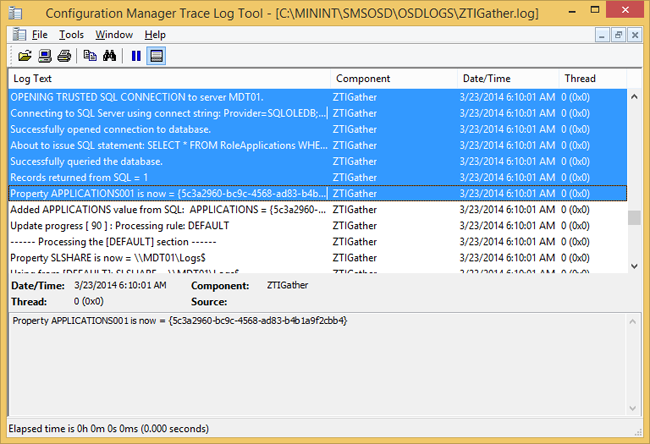
Figure 14. ZTIGather.log displaying the application GUID belonging to the Adobe Reader XI application that would have been installed if you deployed this machine.
## Related topics
[Set up MDT for BitLocker](set-up-mdt-for-bitlocker.md)
[Configure MDT deployment share rules](configure-mdt-deployment-share-rules.md)
[Configure MDT for UserExit scripts](configure-mdt-for-userexit-scripts.md)
[Simulate a Windows 10 deployment in a test environment](simulate-a-windows-10-deployment-in-a-test-environment.md)
[Use the MDT database to stage Windows 10 deployment information](use-the-mdt-database-to-stage-windows-10-deployment-information.md)
[Use web services in MDT](use-web-services-in-mdt.md)
[Use Orchestrator runbooks with MDT](use-orchestrator-runbooks-with-mdt.md)