---
title: Weaknesses
description: The **Weaknesses** page lists down the vulnerabilities found in the infected software running in your organization, their severity, Common Vulnerability Scoring System (CVSS) rating, its prevalence in your organization, breach, and threat insights.
keywords: mdatp threat & vulnerability management, mdatp tvm weaknesses page, finding weaknesses through tvm, tvm vulnerability list, vulnerability details in tvm
search.product: eADQiWindows 10XVcnh
search.appverid: met150
ms.prod: w10
ms.mktglfcycl: deploy
ms.sitesec: library
ms.pagetype: security
ms.author: dolmont
author: DulceMontemayor
ms.localizationpriority: medium
manager: dansimp
audience: ITPro
ms.collection: M365-security-compliance
ms.topic: conceptual
ms.date: 04/11/2019
---
# Weaknesses
**Applies to:**
- [Microsoft Defender Advanced Threat Protection (Microsoft Defender ATP)](https://go.microsoft.com/fwlink/p/?linkid=2069559)
Threat & Vulnerability Management leverages the same signals in Microsoft Defender ATP's endpoint protection to scan and detect vulnerabilities.
The **Weaknesses** page lists down the vulnerabilities found in the infected software running in your organization, their severity, Common Vulnerability Scoring System (CVSS) rating, its prevalence in your organization, corresponding breach, and threat insights.
>[!IMPORTANT]
>To boost your vulnerability assessment detection rates, download the following mandatory security updates and deploy them in your network:
>- 19H1 customers | [KB 4512941](https://support.microsoft.com/help/4512941/windows-10-update-kb4512941)
>- RS5 customers | [KB 4516077](https://support.microsoft.com/help/4516077/windows-10-update-kb4516077)
>- RS4 customers | [KB 4516045](https://support.microsoft.com/help/4516045/windows-10-update-kb4516045)
>- RS3 customers | [KB 4516071](https://support.microsoft.com/help/4516071/windows-10-update-kb4516071)
## Navigate through your organization's weaknesses page
You can see the list of vulnerabilities in four ways:
*Vulnerabilities in global search*
1. Click the global search drop-down menu.
2. Select **Vulnerability** and key-in the Common Vulnerabilities and Exposures (CVE) ID that you are looking for, then click the search icon. The **Weaknesses** page opens with the CVE information that you are looking for.

3. Select the CVE and a flyout panel opens up with more information - the vulnerability description, exploits available, severity level, CVSS v3 rating, publishing and update dates.
>[!NOTE]
>To see the rest of the vulnerabilities in the **Weaknesses** page, type CVE, then click search.
*Weaknesses page in the menu*
1. Go to the Threat & Vulnerability Management navigation menu and select **Weaknesses** to open up the list of vulnerabilities found in your organization.
2. Select the vulnerability that you want to investigate to open up a flyout panel with the vulnerability details, such as: CVE description, CVE ID, exploits available, CVSS V3 rating, severity, publish, and update dates.
*Top vulnerable software widget in the dashboard*
1. Go to the Threat & Vulnerability Management dashboard and scroll down to the **Top vulnerable software** widget. You will see the number of vulnerabilities found in each software along with threat information and a high-level view of the device exposure trend over time.
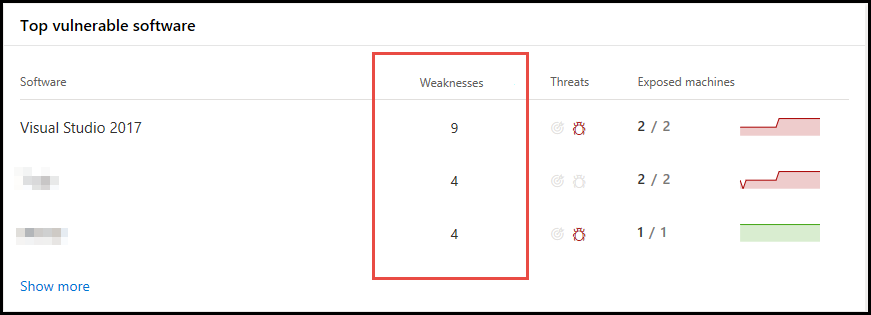
2. Click the software that you want to investigate and it takes you to the software page. You will the weaknesses found in your machine per severity level, in which machines are they installed, version distribution, and the corresponding security recommendation.
3. Select the **Discovered vulnerabilities** tab.
4. Select the vulnerability that you want to investigate to open up a flyout panel with the vulnerability details, such as: CVE description, CVE ID, exploits available, CVSS V3 rating, severity, publish, and update dates.
*Discovered vulnerabilities in the machine page*
1. Go to the left-hand navigation menu bar, then select the machine icon. The **Machines list** page opens.
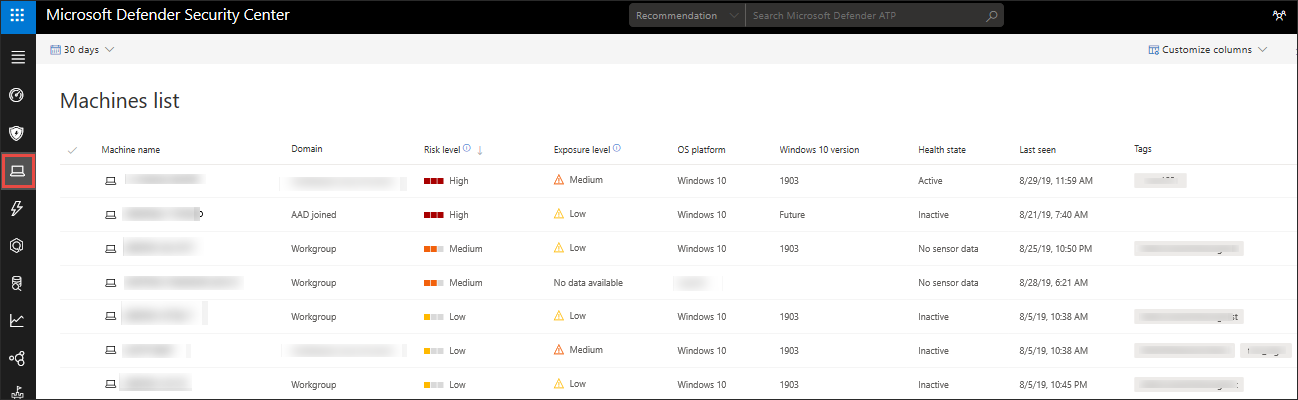
2. In the **Machines list** page, select the machine that you want to investigate.
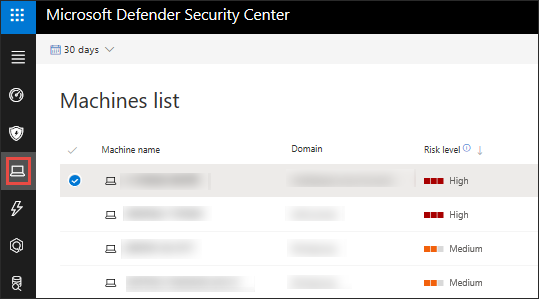
A flyout pane opens with machine details and response action options.
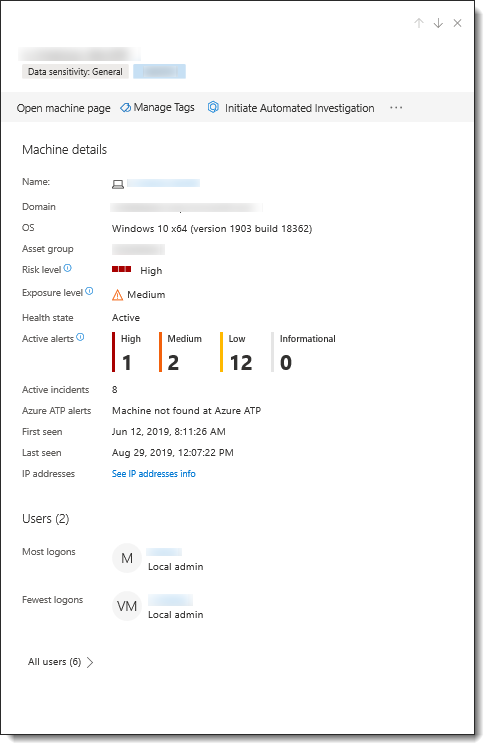
3. In the flyout pane, select **Open machine page**. A page opens with details and response options for the machine you want to investigate.
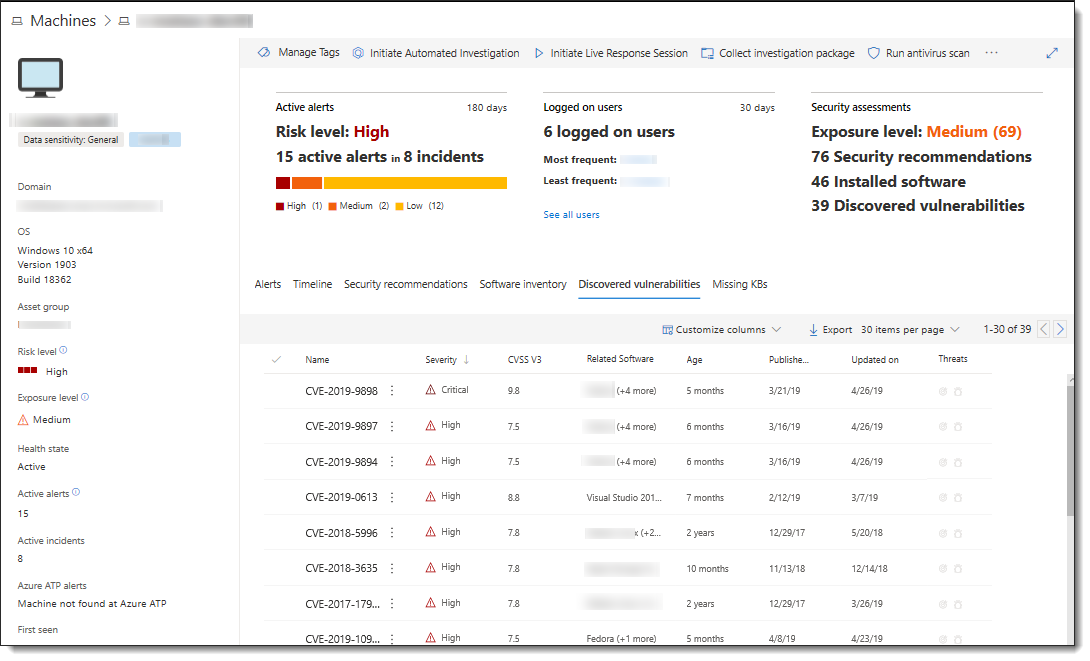
4. Select **Discovered vulnerabilities**.
5. Select the vulnerability that you want to investigate to open up a flyout panel with the vulnerability details, such as: CVE description, CVE ID, exploits available, CVSS V3 rating, severity, publish, and update dates.
## How it works
When new vulnerabilities are released, you would want know how many of your assets are exposed. You can see the list of vulnerabilities and the details in the **Weaknesses** page.
If the **Exposed Machines** column shows 0, that means you are not infected.
If there's a number in the **Exposed Machines**, that means you need to remediate the vulnerabilities in those machines because they put the rest of your assets and your organization at risk.
You can also see the related alert and threat insights in the **Threat** column.
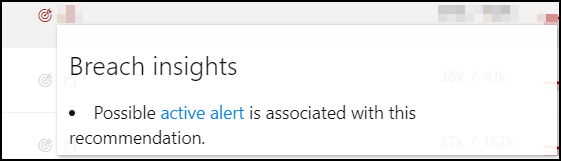
The breach insights icons are highlighted if there are active alerts associated with the vulnerability found in your organization.
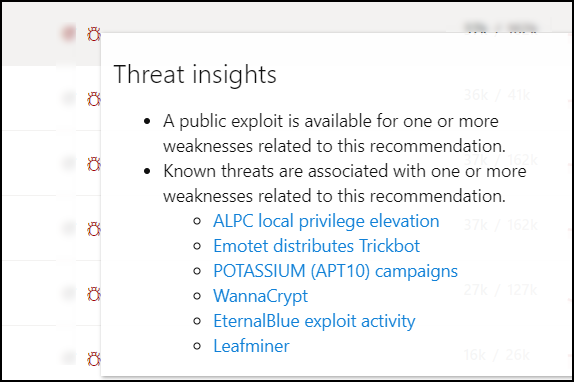
The threat insights icons are highlighted if there are associated exploits in the vulnerability found in your organization. It also shows whether the threat is connected to specific campaign for which, Threat Analytics report links are provided that you can read.
>[!NOTE]
> Always prioritize recommendations that are associated with ongoing threats. These recommendations are marked with the threat insight  icon and possible active alert  icon.
## Report inaccuracy
You can report a false positive when you see any vague, inaccurate, missing, or already remediated vulnerability information in the machine page.
1. Select the **Discovered vulnerabilities** tab.
2. Click **:** beside the vulnerability that you want to report about, and then select **Report inaccuracy**.
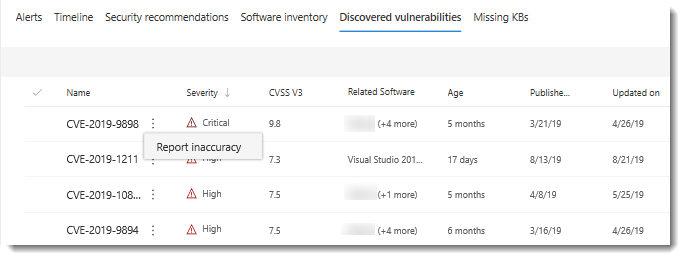
A flyout pane opens.
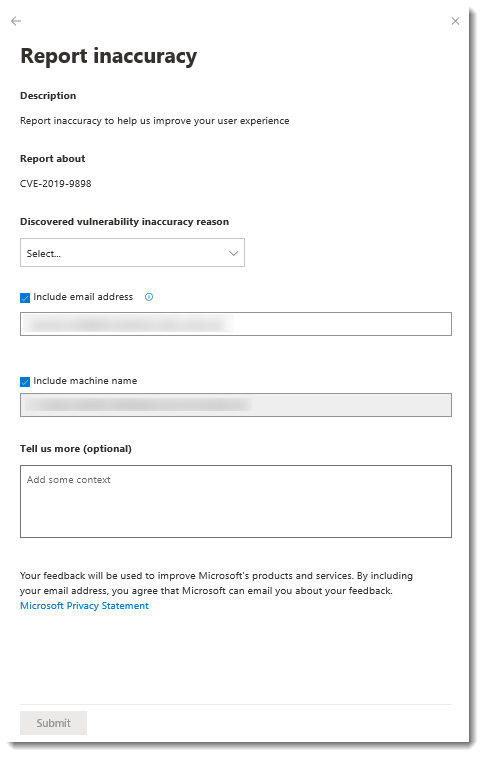
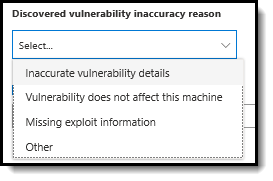
3. From the flyout pane, select the inaccuracy category from the **Discovered vulnerability inaccuracy reason** drop-down menu.
4. Include your email address so Microsoft can send you feedback regarding the inaccuracy you reported.
5. Include your machine name for investigation context.
>[!NOTE]
> You can also provide details regarding the inaccuracy you reported in the **Tell us more (optional)** field to give the threat and vulnerability management investigators context.
6. Click **Submit**. Your feedback is immediately sent to the Threat & Vulnerability Management experts with its context.
## Related topics
- [Risk-based Threat & Vulnerability Management](next-gen-threat-and-vuln-mgt.md)
- [Threat & Vulnerability Management dashboard overview](tvm-dashboard-insights.md)
- [Exposure score](tvm-exposure-score.md)
- [Configuration score](configuration-score.md)
- [Security recommendation](tvm-security-recommendation.md)
- [Remediation](tvm-remediation.md)
- [Software inventory](tvm-software-inventory.md)
- [Scenarios](threat-and-vuln-mgt-scenarios.md)