---
title: Configure exclusions for files opened by specific processes
description: You can exclude files from scans if they have been opened by a specific process.
keywords: Windows Defender Antivirus, process, exclusion, files, scans
search.product: eADQiWindows 10XVcnh
ms.pagetype: security
ms.prod: w10
ms.mktglfcycl: manage
ms.sitesec: library
ms.pagetype: security
ms.localizationpriority: medium
author: dansimp
ms.author: dansimp
ms.date: 12/10/2018
ms.reviewer:
manager: dansimp
---
# Configure exclusions for files opened by processes
**Applies to:**
- [Microsoft Defender Advanced Threat Protection (Microsoft Defender ATP)](https://go.microsoft.com/fwlink/p/?linkid=2069559)
You can exclude files that have been opened by specific processes from Windows Defender Antivirus scans.
This topic describes how to configure exclusion lists for the following:
Exclusion | Example
---|---
Any file on the machine that is opened by any process with a specific file name | Specifying "test.exe" would exclude files opened by: - c:\sample\test.exe
- d:\internal\files\test.exe
Any file on the machine that is opened by any process under a specific folder | Specifying "c:\test\sample\\*" would exclude files opened by:- c:\test\sample\test.exe
- c:\test\sample\test2.exe
- c:\test\sample\utility.exe
Any file on the machine that is opened by a specific process in a specific folder | Specifying "c:\test\process.exe" would exclude files only opened by c:\test\process.exe
When you add a process to the process exclusion list, Windows Defender Antivirus won't scan files opened by that process, no matter where the files are located. The process itself, however, will be scanned unless it has also been added to the [file exclusion list](configure-extension-file-exclusions-windows-defender-antivirus.md).
The exclusions only apply to [always-on real-time protection and monitoring](configure-real-time-protection-windows-defender-antivirus.md). They don't apply to scheduled or on-demand scans.
Changes made with Group Policy to the exclusion lists **will show** in the lists in the [Windows Security app](windows-defender-security-center-antivirus.md#exclusions). However, changes made in the Windows Security app **will not show** in the Group Policy lists.
You can add, remove, and review the lists for exclusions in [Group Policy](#gp), [System Center Configuration Manager, Microsoft Intune, and with the Windows Security app](#man-tools), and you can [use wildcards](#wildcards) to further customize the lists.
You can also [use PowerShell cmdlets and WMI to configure the exclusion lists](#ps), including [reviewing](#review) your lists.
By default, local changes made to the lists (by users with administrator privileges; this includes changes made with PowerShell and WMI) will be merged with the lists as defined (and deployed) by Group Policy, Configuration Manager, or Intune. The Group Policy lists will take precedence in the case of conflicts.
You can [configure how locally and globally defined exclusions lists are merged](configure-local-policy-overrides-windows-defender-antivirus.md#merge-lists) to allow local changes to override managed deployment settings.
## Configure the list of exclusions for files opened by specified processes
**Use Microsoft Intune to exclude files that have been opened by specified processes from scans:**
See [Configure device restriction settings in Microsoft Intune](https://docs.microsoft.com/intune/device-restrictions-configure) and [Windows Defender Antivirus device restriction settings for Windows 10 in Intune](https://docs.microsoft.com/intune/device-restrictions-windows-10#windows-defender-antivirus) for more details.
**Use System Center Configuration Manager to exclude files that have been opened by specified processes from scans:**
See [How to create and deploy antimalware policies: Exclusion settings](https://docs.microsoft.com/sccm/protect/deploy-use/endpoint-antimalware-policies#exclusion-settings) for details on configuring System Center Configuration Manager (current branch).
**Use Group Policy to exclude files that have been opened by specified processes from scans:**
1. On your Group Policy management computer, open the [Group Policy Management Console](https://technet.microsoft.com/library/cc731212.aspx), right-click the Group Policy Object you want to configure and click **Edit**.
2. In the **Group Policy Management Editor** go to **Computer configuration** and click **Administrative templates**.
3. Expand the tree to **Windows components > Windows Defender Antivirus > Exclusions**.
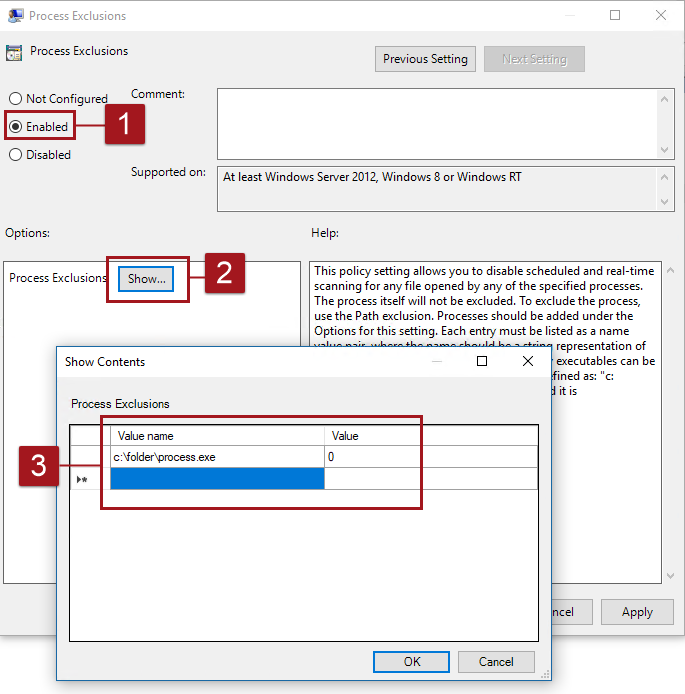
4. Double-click **Process Exclusions** and add the exclusions:
1. Set the option to **Enabled**.
2. Under the **Options** section, click **Show...**.
3. Enter each process on its own line under the **Value name** column. See the [example table](#examples) for the different types of process exclusions. Enter **0** in the **Value** column for all processes.
5. Click **OK**.
**Use PowerShell cmdlets to exclude files that have been opened by specified processes from scans:**
Using PowerShell to add or remove exclusions for files that have been opened by processes requires using a combination of three cmdlets with the `-ExclusionProcess` parameter. The cmdlets are all in the [Defender module](https://technet.microsoft.com/itpro/powershell/windows/defender/defender).
The format for the cmdlets is:
```PowerShell
-ExclusionProcess "- "
```
The following are allowed as the \:
Configuration action | PowerShell cmdlet
---|---
Create or overwrite the list | `Set-MpPreference`
Add to the list | `Add-MpPreference`
Remove items from the list | `Remove-MpPreference`
>[!IMPORTANT]
>If you have created a list, either with `Set-MpPreference` or `Add-MpPreference`, using the `Set-MpPreference` cmdlet again will overwrite the existing list.
For example, the following code snippet would cause Windows Defender AV scans to exclude any file that is opened by the specified process:
```PowerShell
Add-MpPreference -ExclusionProcess "c:\internal\test.exe"
```
See [Manage antivirus with PowerShell cmdlets](use-powershell-cmdlets-windows-defender-Windows Defender Antivirus.md) and [Defender cmdlets](https://technet.microsoft.com/itpro/powershell/windows/defender/index) for more information on how to use PowerShell with Windows Defender Antivirus.
**Use Windows Management Instruction (WMI) to exclude files that have been opened by specified processes from scans:**
Use the [**Set**, **Add**, and **Remove** methods of the **MSFT_MpPreference**](https://msdn.microsoft.com/library/dn455323(v=vs.85).aspx) class for the following properties:
```WMI
ExclusionProcess
```
The use of **Set**, **Add**, and **Remove** is analogous to their counterparts in PowerShell: `Set-MpPreference`, `Add-MpPreference`, and `Remove-MpPreference`.
See the following for more information and allowed parameters:
- [Windows Defender WMIv2 APIs](https://msdn.microsoft.com/library/dn439477(v=vs.85).aspx)
**Use the Windows Security app to exclude files that have been opened by specified processes from scans:**
See [Add exclusions in the Windows Security app](windows-defender-security-center-antivirus.md#exclusions) for instructions.
## Use wildcards in the process exclusion list
The use of wildcards in the process exclusion list is different from their use in other exclusion lists.
In particular, you cannot use the question mark ? wildcard, and the asterisk \* wildcard can only be used at the end of a complete path. You can still use environment variables (such as %ALLUSERSPROFILE%) as wildcards when defining items in the process exclusion list.
The following table describes how the wildcards can be used in the process exclusion list:
Wildcard | Use | Example use | Example matches
---|---|---|---
\* (asterisk) | Replaces any number of characters | |
- Any file opened by C:\MyData\file.exe
? (question mark) | Not available | \- | \-
Environment variables | The defined variable will be populated as a path when the exclusion is evaluated | - %ALLUSERSPROFILE%\CustomLogFiles\file.exe
| - Any file opened by C:\ProgramData\CustomLogFiles\file.exe
## Review the list of exclusions
You can retrieve the items in the exclusion list with MpCmdRun, PowerShell, [System Center Configuration Manager](https://docs.microsoft.com/sccm/protect/deploy-use/endpoint-antimalware-policies#exclusion-settings), [Intune](https://docs.microsoft.com/intune/device-restrictions-configure), or the [Windows Security app](windows-defender-security-center-antivirus.md#exclusions).
If you use PowerShell, you can retrieve the list in two ways:
- Retrieve the status of all Windows Defender Antivirus preferences. Each of the lists will be displayed on separate lines, but the items within each list will be combined into the same line.
- Write the status of all preferences to a variable, and use that variable to only call the specific list you are interested in. Each use of `Add-MpPreference` is written to a new line.
**Validate the exclusion list by using MpCmdRun:**
To check exclusions with the dedicated [command-line tool mpcmdrun.exe](https://docs.microsoft.com/windows/security/threat-protection/windows-defender-antivirus/command-line-arguments-windows-defender-antivirus?branch=v-anbic-wdav-new-mpcmdrun-options), use the following command:
```DOS
MpCmdRun.exe -CheckExclusion -path
```
>[!NOTE]
>Checking exclusions with MpCmdRun requires Windows Defender Antivirus CAMP version 4.18.1812.3 (released in December 2018) or later.
**Review the list of exclusions alongside all other Windows Defender Antivirus preferences by using PowerShell:**
Use the following cmdlet:
```PowerShell
Get-MpPreference
```
See [Use PowerShell cmdlets to configure and run Windows Defender Antivirus](use-powershell-cmdlets-windows-defender-antivirus.md) and [Defender cmdlets](https://technet.microsoft.com/itpro/powershell/windows/defender/index) for more information on how to use PowerShell with Windows Defender Antivirus.
**Retrieve a specific exclusions list by using PowerShell:**
Use the following code snippet (enter each line as a separate command); replace **WDAVprefs** with whatever label you want to name the variable:
```PowerShell
$WDAVprefs = Get-MpPreference
$WDAVprefs.ExclusionProcess
```
See [Use PowerShell cmdlets to configure and run Windows Defender Antivirus](use-powershell-cmdlets-windows-defender-antivirus.md) and [Defender cmdlets](https://technet.microsoft.com/itpro/powershell/windows/defender/index) for more information on how to use PowerShell with Windows Defender Antivirus.
## Related topics
- [Configure and validate exclusions in Windows Defender Antivirus scans](configure-exclusions-windows-defender-antivirus.md)
- [Configure and validate exclusions based on file name, extension, and folder location](configure-extension-file-exclusions-windows-defender-antivirus.md)
- [Configure Windows Defender Antivirus exclusions on Windows Server](configure-server-exclusions-windows-defender-antivirus.md)
- [Customize, initiate, and review the results of Windows Defender Antivirus scans and remediation](customize-run-review-remediate-scans-windows-defender-antivirus.md)
- [Windows Defender Antivirus in Windows 10](windows-defender-antivirus-in-windows-10.md)