---
title: Deploy updates for Microsoft Defender ATP for Mac
ms.reviewer:
description: Describes how to control updates for Microsoft Defender ATP for Mac in enterprise environments.
keywords: microsoft, defender, atp, mac, updates, deploy
search.product: eADQiWindows 10XVcnh
search.appverid: met150
ms.prod: w10
ms.mktglfcycl: deploy
ms.sitesec: library
ms.pagetype: security
ms.author: dansimp
author: dansimp
ms.localizationpriority: medium
manager: dansimp
audience: ITPro
ms.collection: M365-security-compliance
ms.topic: conceptual
---
# Deploy updates for Microsoft Defender ATP for Mac
**Applies to:**
- [Microsoft Defender Advanced Threat Protection (Microsoft Defender ATP) for Mac](microsoft-defender-atp-mac.md)
Microsoft regularly publishes software updates to improve performance, security, and to deliver new features.
To update Microsoft Defender ATP for Mac, a program named Microsoft AutoUpdate (MAU) is used. By default, MAU automatically checks for updates daily, but you can change that to weekly, monthly, or manually.
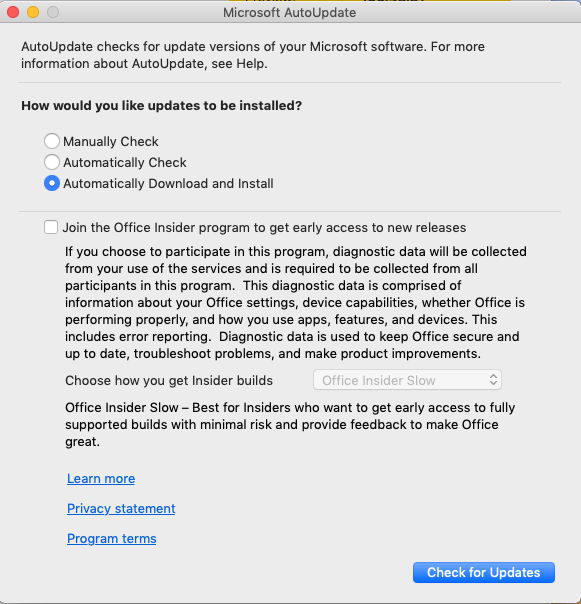
If you decide to deploy updates by using your software distribution tools, you should configure MAU to manually check for software updates. You can deploy preferences to configure how and when MAU checks for updates for the Macs in your organization.
## Use msupdate
MAU includes a command-line tool, called *msupdate*, that is designed for IT administrators so that they have more precise control over when updates are applied. Instructions for how to use this tool can be found in [Update Office for Mac by using msupdate](https://docs.microsoft.com/deployoffice/mac/update-office-for-mac-using-msupdate).
In MAU, the application identifier for Microsoft Defender ATP for Mac is *WDAV00*. To download and install the latest updates for Microsoft Defender ATP for Mac, execute the following command from a Terminal window:
```
./msupdate --install --apps wdav00
```
## Set preferences for Microsoft AutoUpdate
This section describes the most common preferences that can be used to configure MAU. These settings can be deployed as a configuration profile through the management console that your enterprise is using. An example of a configuration profile is shown in the following sections.
### Set the channel name
The channel determines the type and frequency of updates that are offered through MAU. Devices in `InsiderFast` (corresponding to the Insider Fast channel) can try out new features before devices in `External` (corresponding to the Insider Slow channel) and `Production`.
The `Production` channel contains the most stable version of the product.
>[!TIP]
>In order to preview new features and provide early feedback, it is recommended that you configure some devices in your enterprise to `InsiderFast` or `External`.
|||
|:---|:---|
| **Domain** | com.microsoft.autoupdate2 |
| **Key** | ChannelName |
| **Data type** | String |
| **Possible values** | InsiderFast
External
Production |
### Set update check frequency
Change how often MAU searches for updates.
|||
|:---|:---|
| **Domain** | com.microsoft.autoupdate2 |
| **Key** | UpdateCheckFrequency |
| **Data type** | Integer |
| **Default value** | 720 (minutes) |
| **Comment** | This value is set in minutes. |
### Change how MAU interacts with updates
Change how MAU searches for updates.
|||
|:---|:---|
| **Domain** | com.microsoft.autoupdate2 |
| **Key** | HowToCheck |
| **Data type** | String |
| **Possible values** | Manual
AutomaticCheck
AutomaticDownload |
| **Comment** | Note that AutomaticDownload will do a download and install silently if possible. |
### Change whether the "Check for Updates" button is enabled
Change whether local users will be able to click the "Check for Updates" option in the Microsoft AutoUpdate user interface.
|||
|:---|:---|
| **Domain** | com.microsoft.autoupdate2 |
| **Key** | EnableCheckForUpdatesButton |
| **Data type** | Boolean |
| **Possible values** | True (default)
False |
### Disable Insider checkbox
Set to true to make the "Join the Office Insider Program..." checkbox unavailable / greyed out to users.
|||
|:---|:---|
| **Domain** | com.microsoft.autoupdate2 |
| **Key** | DisableInsiderCheckbox |
| **Data type** | Boolean |
| **Possible values** | False (default)
True |
### Limit the telemetry that is sent from MAU
Set to false to send minimal heartbeat data, no application usage, and no environment details.
|||
|:---|:---|
| **Domain** | com.microsoft.autoupdate2 |
| **Key** | SendAllTelemetryEnabled |
| **Data type** | Boolean |
| **Possible values** | True (default)
False |
## Example configuration profile
The following configuration profile is used to:
- Place the device in the Insider Fast channel
- Automatically download and install updates
- Enable the "Check for updates" button in the user interface
- Allow users on the device to enroll into the Insider channels
### JAMF
```XML
ChannelName
InsiderFast
HowToCheck
AutomaticDownload
EnableCheckForUpdatesButton
DisableInsiderCheckbox
SendAllTelemetryEnabled
```
### Intune
```XML
PayloadUUID
B762FF60-6ACB-4A72-9E72-459D00C936F3
PayloadType
Configuration
PayloadOrganization
Microsoft
PayloadIdentifier
com.microsoft.autoupdate2
PayloadDisplayName
Microsoft AutoUpdate settings
PayloadDescription
Microsoft AutoUpdate configuration settings
PayloadVersion
1
PayloadEnabled
PayloadRemovalDisallowed
PayloadScope
System
PayloadContent
PayloadUUID
5A6F350A-CC2C-440B-A074-68E3F34EBAE9
PayloadType
com.microsoft.autoupdate2
PayloadOrganization
Microsoft
PayloadIdentifier
com.microsoft.autoupdate2
PayloadDisplayName
Microsoft AutoUpdate configuration settings
PayloadDescription
PayloadVersion
1
PayloadEnabled
ChannelName
InsiderFast
HowToCheck
AutomaticDownload
EnableCheckForUpdatesButton
DisableInsiderCheckbox
SendAllTelemetryEnabled
```
To configure MAU, you can deploy this configuration profile from the management tool that your enterprise is using:
- From JAMF, upload this configuration profile and set the Preference Domain to *com.microsoft.autoupdate2*.
- From Intune, upload this configuration profile and set the custom configuration profile name to *com.microsoft.autoupdate2*.
## Resources
- [msupdate reference](https://docs.microsoft.com/deployoffice/mac/update-office-for-mac-using-msupdate)