

I wrote this PowerShell script last year when I wanted to automate the report of Active Directory user objects with Windows PowerShell. It was written with the intention of reporting the user objects within specific organizational units (OU) in two AD domains. Since there are multiple exported files during this process, I concatenated the separate files into one file by throwing them through the Import-CSV function. And finally, the merged file is emailed to the users who require viewing the file. You can create a new scheduled task in the OS to execute the script as often as you’d like.
# Report Active Directory Users
# Author: Travis Runyard
# 8/20/2013
# Disable the execution policy Set-ExecutionPolicy 0
# Import the ActiveDirectory module Import-Module Activedirectory
# Change this to your temp working directory cd "\\CompanyName.int\dfs\Share\Folder"
# Variables are for the exported filename
$file_domain01 = (Get-Date).toString('yy - MMM') + " domain01.csv" $file_domain02 = (Get-Date).toString('yy - MMM') + " domain02.csv"
#This pulls the actual data out of Active Directory
Get-ADUser -Filter { enabled -eq $true } -SearchBase "OU=Users,OU=CompanyName,DC=YourDomain,DC=int" -SearchScope Subtree -Properties description,sAMAccountName | Sort-Object -Property description,name,sAMAccountName | Select-Object description,name,sAMAccountName | Export-CSV $file_domain01 Get-ADUser -Server subdomain.CompanyName.int -Filter { (enabled -eq $true) } -SearchBase "OU=Users,OU=CompanyName,DC=subdomain,DC=YourDomain,DC=int" -SearchScope Subtree -Properties distinguishedname,description,sAMAccountName | ? {$_.DistinguishedName -notlike "*UserToBeExcluded*"} | Sort-Object -Property description,name,sAMAccountName | Select-Object description,name,sAMAccountName | Export-CSV $file_domain02
#Variables are for different time formats
$timestamp = (Get-Date).toString(‘MM-dd-yyyy’) $timestamp2 = (Get-Date).toString('MMMM yyyy')
#This is the filename for the concatenated file
$merged_filename = (Get-Date).toString('yy - MMM') + " Users.csv" #Concatenate the files into one file Get-ChildItem -name | ? {$_ -eq $file_domain01 -or $_ -eq $file_domain02} | Import-Csv | sort description,name,sAMAccountName | Export-Csv -Path $merged_filename -NoTypeInformation
#Email with user list attachment
Send-MailMessage -from "IT Support <itsupport@companyname.com>" -to "<TargetUser@companyname.com>","<TargetUser2@companyname.com>","<TargetUser3@companyname.com>" -cc "<UserCC@companyname.com>" -subject "User Report - $timestamp2" -body "Automated user report, contact itsupport@CompanyName.com if there is a problem" -Attachment $merged_filename -smtpServer EmailServer.CompanyName.intSend-MailMessage can be cleaned up by using backticks ( ` ) at the end of each switch and dropping a line. The backtick lets you keep multi-line code on a single line. I would have done this in the code above however the backtick breaks my syntax highlighter plugin.After you tweak the script and get it working right, you’ll begin to realize the fruits of your labor.
To take it one step further, I also wanted to script the reporting of any user changes in Active Directory during the previous month. That means any user creations and deletions under a certain organizational unit. To track the deletions, you will need to have implemented a Windows Server 2008 R2 Forest Functional level and enable the AD recycle bin. When a user object is deleted in AD, most of the attributes are stripped. This caused a slight problem for me, as I wanted to query the description attribute because it contained valuable data. To fix this issue, I turned to google and found this article originally written by Michael Pietroforte of 4sysops.com:
Knowing that deleted Active Directory objects are not erased immediately, but only after 60 (Windows 2000/2003) or 180 days (Windows 2003 SP1/2008), can save your day if you accidentally delete user, computer or container objects. I have reviewed two free tools that allow you to restore deleted AD objects (Quest Object Restore for Active Directory and ADRestore.NET). These tools can recover objects that are marked for deletion, so-called “tombstone” objects. The technical term for this process is tombstone reanimation. Who knows?; if you accidentally delete your boss’ account, then this term might take on a literal meaning.
A downside of tombstone reanimation is that by default, important attributes are stripped from AD objects when they are deleted. For example, user objects’ last and first name attributes are not saved in tombstone objects. Perhaps even more problematic is that the password is blank after you restore a deleted user object, which means that you won’t be able to keep it a secret that you have accidentally deleted users accounts.
The good news is that you can configure the Active Directory schema to store additional attributes in tombstone objects. The bad news is that the procedure is a bit complicated. Furthermore, this method can’t be used to restore group memberships of computer and user objects. The latter shouldn’t be a big deal if you’ve deleted only a few objects; but if the number of objects that have to be restored is too big, then you better use your backup tool to recover Active Directory.
The main advantage of tombstone reanimation compared to other restore methods is that once everything is configured, restoring Active Directory objects costs only a couple of mouse clicks. You don’t have to take your domain offline, which is necessary if you restore a backup.
To configure the attributes that are stored with the tombstone objects, you need a tool that allows you to edit Active Directory schema objects. I will use ADSI Edit in this description. This program is part of the Windows Server 2003 Support Tools (Adminpak), which can be found on the product CD. The latest version also can be downloaded. On a Windows Server 2008 machine, you can just add the Active Directory Lightweight Directory Services Tools feature, which belongs to the Remote Server Administration Tools. For Windows Vista, you have to download and install RSAT.
Note: Editing the Active Directory Schema is recommended only for advanced system administrators. In any case, you should make a backup of your Active Directory database before you mess with its schema.
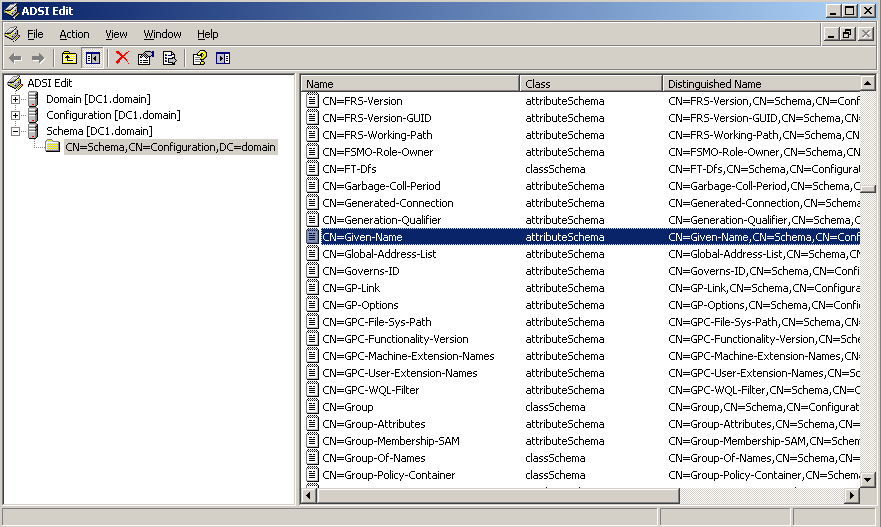
In this example, we will configure the First name attribute to be stored in a tombstone object whenever a user object is deleted. The First name attribute corresponds to theGiven-Nameobject, which you can find in the Schema hive in ADSI Edit. Double clicking theGiven-Nameobject allows you to edit its properties. ThesearchFlagsproperty is the one that will interest us here.
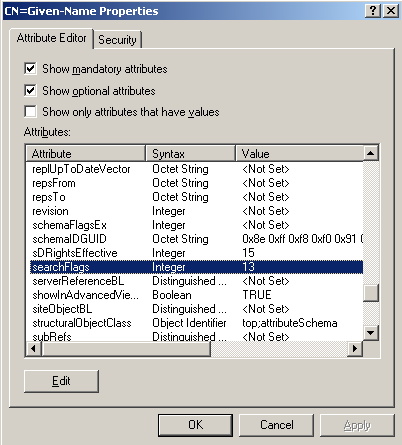
ThesearchFlagsattribute also controls other behaviors. Its default value for theGiven-Nameschema object is 5, which corresponds to the binary number 00000101. You have to set bit 3 (the fourth position from the right as the first position is called bit 0) if you want the first name to be saved in the tombstone. However, the other bits should remain unchanged: 00001101. The values have to be entered as integers, so you have to change the attribute’s value to 13. If you are unfamiliar with binary numbers, then you can use the Windows Calculator in scientific mode. It allows you to convert integers into binary numbers and vice versa.
Well, I told you it is a bit complicated. What makes things even more complicated is that the schema objects’ names are sometimes different from the names of the attributes in the Active Directory User and Computers (ADUC) interface. Here are a few “translations” of common user object attributes:
First name =Given-Name
Last name =Surname
Initials =Initials
Display name =Display-Name
Description =Description
Office =Physical-Delivery-Office-Name
Telephone number =Telephone-Number
E-mail =E-mail-Addresses
Web-page =WWW-Home-Page
A bigger list of attribute names can be found here.
If you want all these attributes stored in tombstone objects, then you have to set, for each of them, bit 3 in thesearchFlagsattribute of the corresponding schema object.
A schema object also controls the user password behavior, the Unicode-pwd object. ItssearchFlagsattribute is 0 by default. Thus to set bit 3, you have to enter the integer 8 (=1000). By the way, the schema objectUser-Passworddoes not influence the tombstone object.
Please note that changes to the Schema don’t take effect immediately. You have to wait up to five minutes. However, you can “Reload the Schema” instantly with the Active Directory Schema snap-in.
One final note: Some applications change the Active Directory schema during installation. Usually, they inform you about it. You should check the schema objects you have changed after installing such an application.
To sum that up, we need to change the searchFlags attribute of the CN=Description schema object to 13 using the ADSI editor. After the schema object was modified, the report successfully showed the Description attribute of deleted users. Ok, here's the script:
# Report Active Directory Users
# Author: Travis Runyard
# 8/20/2013
# Disable the execution policy
Set-ExecutionPolicy 0
#Import the ActiveDirectory module
Import-Module Activedirectory
#Change this to your temp working directory
Set-Location -Path "\\CompanyName.int\dfs\Share\Folder"
#Set the variable to the previous month
$LastMonth = (Get-Date).AddMonths(-1)
#Get the first day of the previous month
$FirstDayofLastMonth = Get-Date -year $LastMonth.year -month $LastMonth.month -day 1 -format d
#This is used in the email subject line to show when this report was generated
$timestamp2 = (Get-Date).toString('MMMM yyyy')
#Set filenames to include dates
$file_domain01_deleted = (Get-Date).toString('yy - MMM') + " domain01 Deleted.csv"
$file_domain02_deleted = (Get-Date).toString('yy - MMM') + " domain02 Deleted.csv"
$file_domain01_created = (Get-Date).toString('yy - MMM') + " domain01 Created.csv"
$file_domain02_created = (Get-Date).toString('yy - MMM') + " domain02 Created.csv"
$merged_filename = (Get-Date).toString('yy - MMM') + " User Changes.csv"
#Query Changed Deleted Users and export to CSV
Get-ADObject -server dc1.CompanyName.int –SearchBase “CN=Deleted Objects,DC=YourDomain,DC=int” -Filter {isdeleted -eq $true -and (name -ne "Deleted Objects" -and samAccountName -notlike "*test*" -and ObjectClass -eq "user")} -IncludeDeletedObjects -Properties description,DisplayName,samAccountName,Deleted,whenChanged,whenCreated | ? {$_.whenChanged -ge $FirstDayofLastMonth} | Sort-object description,DisplayName,samAccountName | Select-Object description, DisplayName, samAccountName, Deleted, whenCreated | Export-CSV $file_domain01_deleted -NoTypeInformation
Get-ADObject -server dc2.subdomain.CompanyName.int –SearchBase “CN=Deleted Objects,DC=subdomain,DC=YourDomain,DC=int” -Filter {isdeleted -eq $true -and (name -ne "Deleted Objects" -and samAccountName -notlike "*test*" -and ObjectClass -eq "user")} -IncludeDeletedObjects -Properties description,DisplayName,samAccountName,Deleted,whenChanged,whenCreated | ? {$_.whenChanged -ge $FirstDayofLastMonth} | Sort-object description,DisplayName,samAccountName | Select-Object description,DisplayName,samAccountName,Deleted,whenCreated | Export-CSV $file_domain02_deleted -NoTypeInformation
#Query Changed Active Users and export to CSV
Get-ADUser -Server dc1.CompanyName.int -Filter {enabled -eq $true -and (samAccountName -notlike "*test*" -and ObjectClass -eq "user")} -SearchBase "OU=Users,OU=CompanyName,DC=YourDomain,DC=int" -SearchScope Subtree -Properties description,DisplayName,sAMAccountName,Deleted,whenCreated | ? {$_.whenCreated -ge $FirstDayofLastMonth} | Sort-Object -Property description,DisplayName,sAMAccountName | Select-Object Description,DisplayName,sAMAccountName,Deleted,whenCreated | Export-CSV $file_domain01_created -NoTypeInformation
Get-ADUser -Server dc2.subdomain.CompanyName.int -Filter {enabled -eq $true -and (samAccountName -notlike "*test*" -and ObjectClass -eq "user")} -SearchBase "OU=Users,OU=CompanyName,DC=subdomain,DC=CompanyName,DC=int" -SearchScope Subtree -Properties description,DisplayName,sAMAccountName,Deleted,whenCreated | ? {$_.DistinguishedName -notlike "*FTP*" -and $_.whenCreated -ge $FirstDayofLastMonth} | Sort-Object -Property description,DisplayName,sAMAccountName | Select-Object Description,DisplayName,sAMAccountName,Deleted,whenCreated | Export-CSV $file_domain02_created -NoTypeInformation
#Concatenate the files
Get-ChildItem -name | ? {$_ -eq $file_domain01_deleted -or $_ -eq $file_domain02_deleted -or $_ -eq $file_domain01_created -or $_ -eq $file_domain02_created} | Import-Csv | Sort-Object @{expression="Deleted";Descending=$true},@{expression="description";Ascending=$true},@{expression="DisplayName";Ascending=$true},@{expression="samAccountName";Ascending=$true} | Export-Csv -Path $merged_filename -NoTypeInformation
#Send email with the merged file as an attachment
Send-MailMessage -from "IT Support <itsupport@CompanyName.com>" -to "<youremail@company.com>","<youremail2@company.com>","<youremail3@company.com>" -cc "<user@company.com>" -subject "User *Changes* Report - $timestamp2" -body "Automated user *changes* report, contact itsupport@CompanyName.com if there is a problem" -Attachment $merged_filename -smtpServer EmailServer.CompanyName.int
As always if you have any questions, leave a comment below and I will respond the best I can.
Thanks for reading.
Source: http://4sysops.com/archives/how-to-save-additional-active-directory-attributes-and-the-password-in-tombstone-objects/ (for reanimated tombstone attribute retention)
