
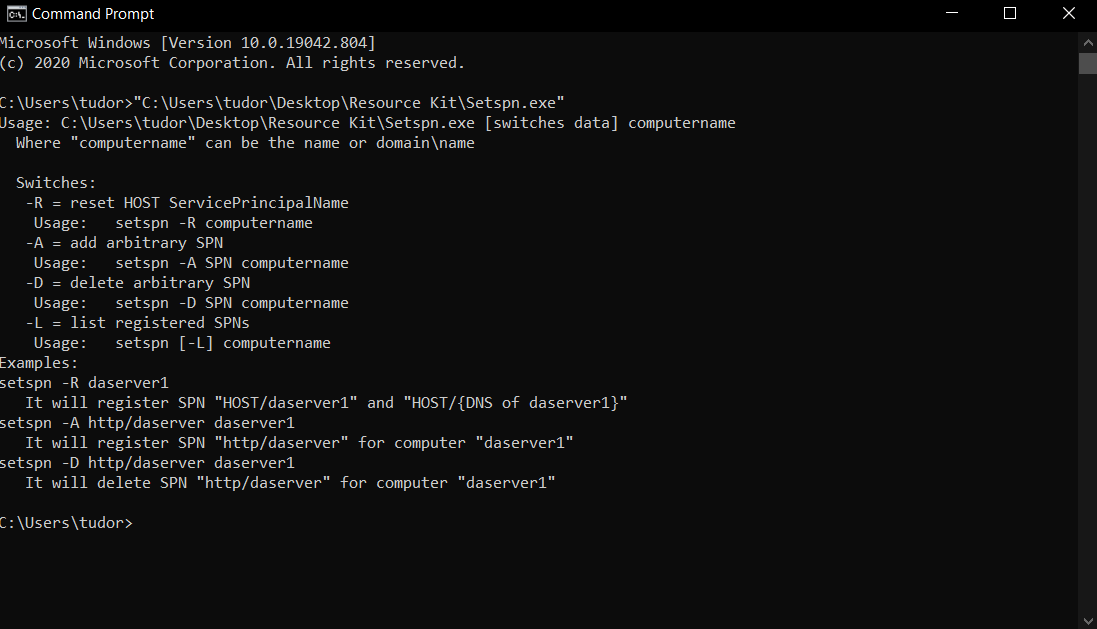
If you have ever wanted to decommission an old file/SQL server while bringing another online to replace it and keep the existing hostname alive as an alias of the new system, you may want to force a duplicate SPN.
Setspn.exe has had duplicate SPN detection built-in to it since the Windows Server 2008 release when using the -S option. You can bypass the duplicate SPN detection by using the -A option however. Creation of a duplicate SPN is blocked when targeting a Windows Server 2012 R2 DC using SetSPN with the -A option. The error message displayed is the same as the one displayed when using the -S option:
Duplicate SPN found, aborting operation!
Sometimes the file server (NAS / RAS or a computer where we have a shared folder) is registered in DNS as an alias instead of the real hostname. When \\myalias\sharename\file.csv is accessed, we may get the error message “filename, could not be opened”.
To register the SPN for the DNS alias (CNAME) records, use the Setspn tool with the following syntax:
setspn -A host/your_ALIAS_name computername
setspn -A host/your_ALIAS_name.domain.int computername
The trick is the -A switch (which doesn’t show up anymore with setspn /help on Windows Server 2012). If you used -s it will find a duplicate as in this example:
setspn -s HOST/OLDSERVER newserver
Checking domain DC=Domain,DC=int
 CN=OLDSERVER,OU=Servers,OU=Folder,DC=Domain,DC=int
 WSMAN/OLDSERVER
 WSMAN/OLDSERVER.Domain.int
 HOST/OLDSERVER
 HOST/OLDSERVER.Domain.int
Duplicate SPN found, aborting operation!
You must register the Kerberos service principal names (SPNs), the host name, and the fully-qualified domain name (FQDN) for all new DNS alias records. If you do not do this, a Kerberos ticket request for the DNS alias record will fail and return the error code KDC_ERR_S_SPRINCIPAL_UNKNOWN.
