
This guide will show you how to enable/disable ICMP ping responses referred to as Echo Request in Windows Server 2022 (should work with any recent version–2008 R2, 2012 R2, 2016, 2019, 2022). Enabling ping will help you to monitor and troubleshoot network issues on your network. Prior to making any changes it would be a good idea to make sure you’re not violating any department policies, although I have never gotten my hand slapped by enabling ICMP echo requests, however it has been for…get this…having client drive redirection enabled on my remote desktop session to a non-critical Windows box. Jesus H. Christ, sorry but that still irks me.
Since the Server Core variant of Windows doesn’t have a GUI, here is the command you can run in order to allow responses to ICMP echo requests:
Enable IPv4 Ping (Allow responses to ingress/inbound ICMP echo requests):
netsh advfirewall firewall add rule name="ICMP Allow incoming V4 echo request" protocol="icmpv4:8,any" dir=in action=allow
Enable IPv6 Ping (Allow responses to ingress/inbound ICMP echo requests):
netsh advfirewall firewall add rule name="ICMP Allow incoming V6 echo request" protocol="icmpv6:8,any" dir=in action=allow
Disable IPv4 Ping (Deny responses to ingress/inbound ICMP echo requests):
netsh advfirewall firewall add rule name="ICMP Allow incoming V4 echo request" protocol=icmpv4:8,any dir=in action=block
Disable IPv6 Ping (Deny responses to ingress/inbound ICMP echo requests):
netsh advfirewall firewall add rule name="ICMP Allow incoming V6 echo request" protocol=icmpv6:8,any dir=in action=block


Allow ICMP Echo Requests in Windows Server – GUI
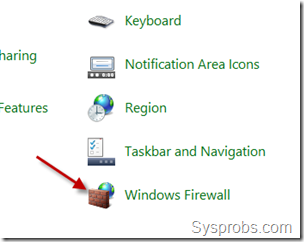
- Go to control panel and open
Windows Firewall. There are plenty of ways to reach control panel on a Windows server.
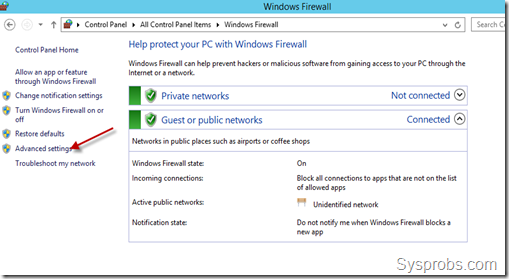
- Click on
Advanced Settings.
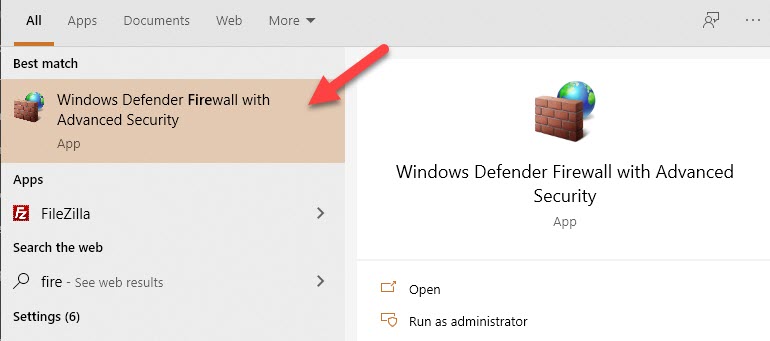
Additionally, you can search forFirewallin Windows search to reach the advanced Firewall settings as below.
- In the earlier Operating Systems, we need to create a firewall rule to allow ICMP echo packets. Luckily the rule is already there and we just need to enable it.To enable the inbound rule that allowing ICMP packets, select
Inbound Rules. Locate theFile and Printer Sharing (Echo Request –ICMPv4-In), right-click on it and selectEnable Rule.
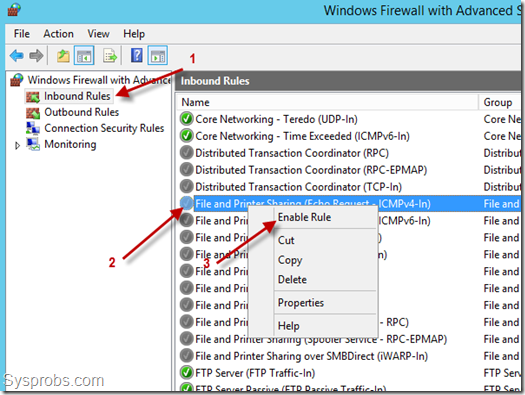
That will allow inbound ICMP ping requests and respond to them without completely disabling Windows firewall service. If you rock IPv6 on your LAN, there’s a separate rule we need to enable called File and Printer Sharing (Echo Request –ICMPv6-In).
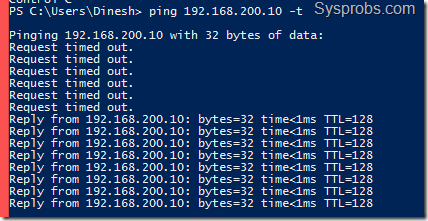
In a similar scenario, if a server is responding to ping/ICMP requests, but you need to stop it for tight security, you can simply disable the same rule.
Visit the Windows firewall advances settings and disable File and Printer Sharing (Echo Request –ICMPv4-In) rule.
If you have any questions/comments regarding this article, click here or scroll down below (login isn't required to post comments and there's no waiting period).
