
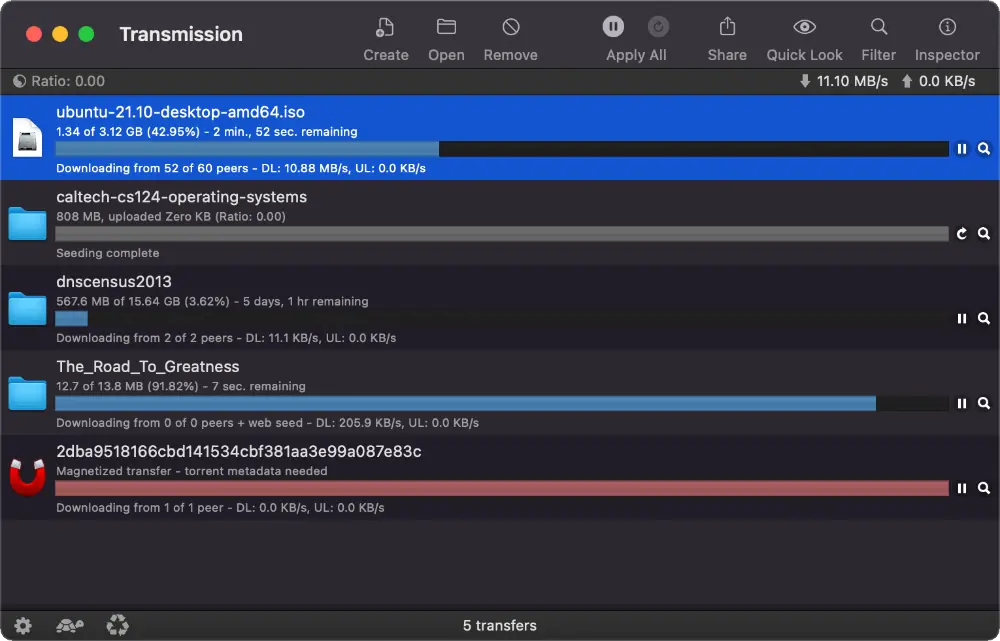
There are many reasons for wanting to run a shell script after a torrent download finishes. This post will focus on showing you how to run a script which will rsync copy the finished torrent to another file system location.
Getting it Setup:
You will first need to locate your Transmission settings.json file and add your scripts file name and set enabled to true in these two configurations:
    "script-torrent-done-enabled": true,
    "script-torrent-done-filename": "/path/yourscriptfile.sh",
The following shell script is pretty self explanatory and has a lot of code comments which does a good job of explaining what is happening. The only parts of the script you should need to change are under the VARIABLES section.
If you have any questions, just leave me a comment at the bottom of this page.
The Script:
https://gist.github.com/visualblind/b233a8c90e8d8d97d410f2ad6ab1f09f
#!/usr/bin/env bash
# Transmission script to move torrent files

#################################################################################
#                     Transmission Environment Variables                        #
#################################################################################

# TR_APP_VERSION - Transmission's short version string, e.g. 4.0.0
# TR_TIME_LOCALTIME
# TR_TORRENT_BYTES_DOWNLOADED - Number of bytes that were downloaded for this torrent
# TR_TORRENT_DIR - Location of the downloaded data
# TR_TORRENT_HASH - The torrent's info hash
# TR_TORRENT_ID
# TR_TORRENT_LABELS - A comma-delimited list of the torrent's labels
# TR_TORRENT_NAME - Name of torrent (not filename)
# TR_TORRENT_PRIORITY - The priority of the torrent (Low is "-1", Normal is "0", High is "1")
# TR_TORRENT_TRACKERS - A comma-delimited list of the torrent's trackers' announce URLs

#################################################################################
#                                   VARIABLES                                   #
#################################################################################

LOGFILE="/config/rsync/torrentdone.log"
RSYNC_LOGFILE="/config/rsync/torrentdone_rsync.log"
TORRENT_PATH="$TR_TORRENT_DIR/$TR_TORRENT_NAME"
TORRENT_DESTPATH="/ffmpeg-vcodec/"

#################################################################################
#                                   FUNCTIONS                                   #
#################################################################################

function setup_colors() {
    NC='\033[0m' RED='\033[0;31m' GREEN='\033[0;32m' ORANGE='\033[0;33m' BLUE='\033[0;34m' PURPLE='\033[0;35m' CYAN='\033[0;36m' YELLOW='\033[1;33m'
}

#################################################################################
#                                 SCRIPT CONTROL                                #
#################################################################################

# Log script events
function edate
{
  setup_colors
  echo -e "${GREEN}$(date '+%Y-%m-%d %H:%M:%S')    ${CYAN}$1${NC}" >> "$LOGFILE"
}

edate "__________________________NEW TORRENT FILE__________________________"
edate "Transmission version: $TR_APP_VERSION"
edate "Time: $TR_TIME_LOCALTIME"
edate "Torrent name: $TR_TORRENT_NAME"
edate "Directory: $TR_TORRENT_DIR"
edate "Torrent Hash: $TR_TORRENT_HASH"
edate "Torrent ID: $TR_TORRENT_ID"
edate "Downloaded: $TR_TORRENT_BYTES_DOWNLOADED"
edate "Full Torrent Path: $TORRENT_PATH"

# checks whether or not the finished torrent file is associated with sonarr/radarr via
# having a label associated with it and only copy if no labels
if [[ -z "$TR_TORRENT_LABELS" ]]; then
    rsync --recursive --update --times --ignore-existing --progress --human-readable \
    --stats --verbose --log-file="$RSYNC_LOGFILE" -f'+ */' -f '+ *' -f'- .git/' \
    "$TORRENT_PATH" "$TORRENT_DESTPATH"
else
    edate "${GREEN}$TR_TORRENT_NAME${NC} is attached to label: ${ORANGE}$TR_TORRENT_LABELS${NC}"
    exit 1
fi

if [[ $? -eq 0 ]]; then
    edate "${GREEN}Copy success to: ${YELLOW}$TORRENT_DESTPATH${NC}"
    exit 0
else
    edate "${RED}Copy failed to: ${YELLOW}$TORRENT_DESTPATH${NC}"
    exit 1
fi
If a label is applied to the torrent then rsync will not copy anything and the script will exit. The reason I check whether or not a label exists is because Servarr apps such as Radarr and Sonarr attach a label to the torrents it's managing as a management mechanism.
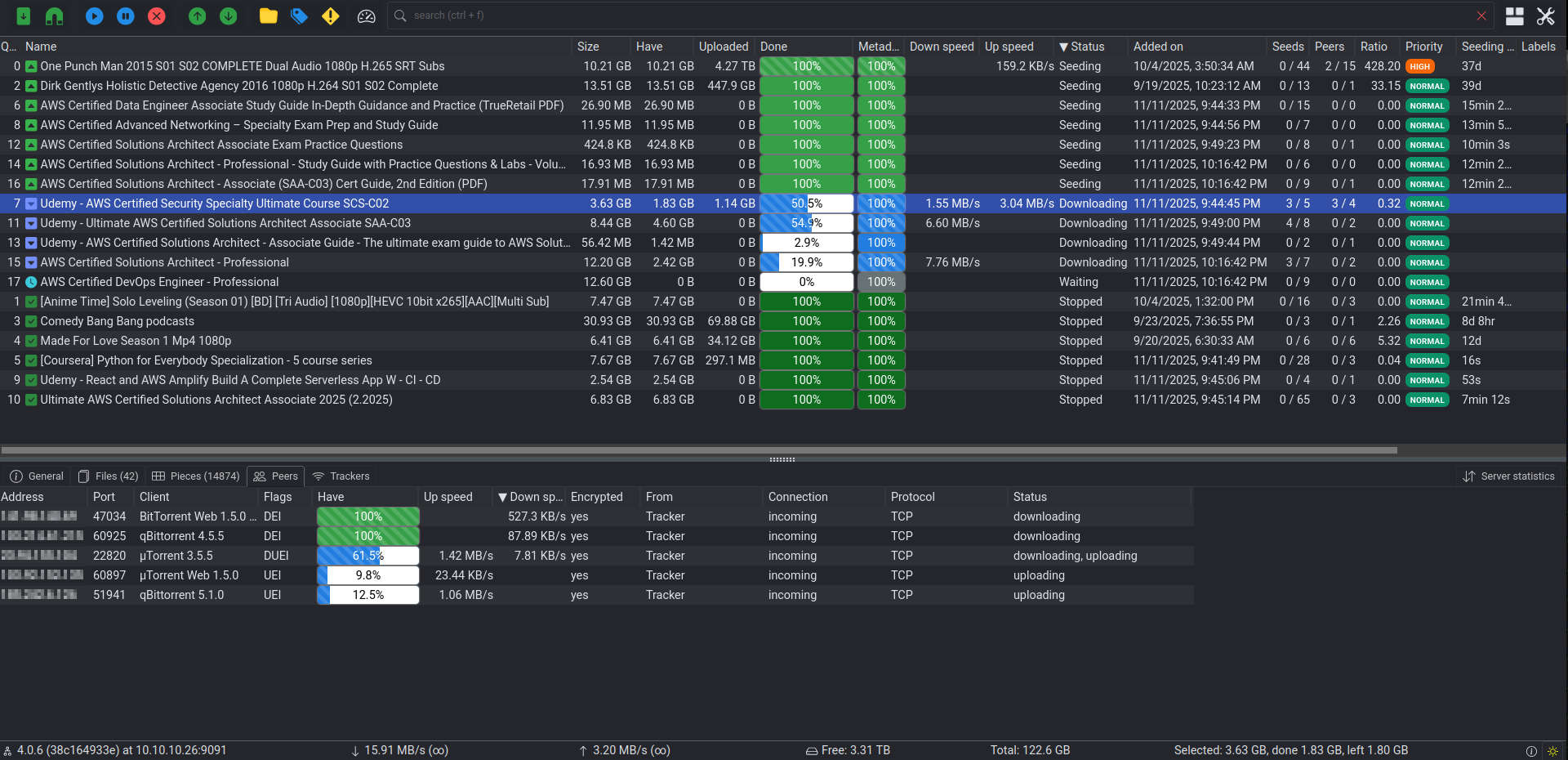
Due to the condition of requiring the torrents to not have any labels applied before any file copying happens, you can create any arbitrary label you like and attach it to your torrents if you don't want the script to run. I choose a label name of NOCOPY as shown in the screenshot below (click the image to enlarge).

I feel that I should state that I am not involved with any web gui project in any way shape or form. Scroll down past the log files section for a screenshot of TrguiNG.
Log Files:
The script creates two log files:
- The variable
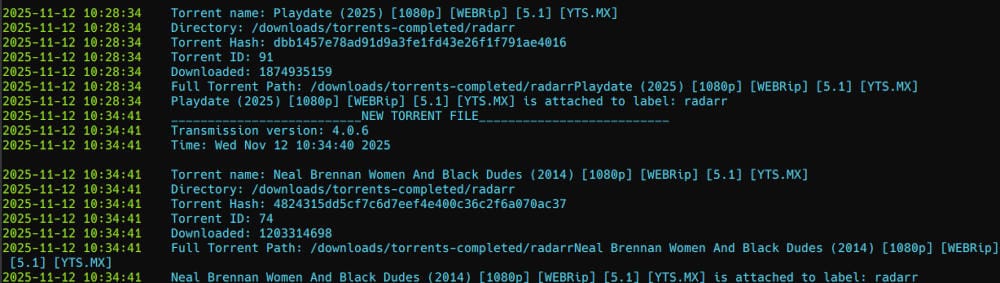
$LOGFILEconfigures the log file location and contains info about the downloaded torrent. Use a tool likecatortailin order to view the text in color (see the screenshot below). - Rsync also produces a log file in the variable
$RSYNC_LOGFILEand tells you every single file being copied:
2025/11/11 02:29:17 [2282] building file list
2025/11/11 02:29:17 [2282] cd+++++++++ Complete Python Course from Basics to Brilliance in HD/
2025/11/11 02:29:53 [2282] >f+++++++++ Complete Python Course from Basics to Brilliance in HD/Complete Python Course from Basics to Brilliance in HD.zip
2025/11/11 02:29:53 [2282] >f+++++++++ Complete Python Course from Basics to Brilliance in HD/Read Me.txt
2025/11/11 02:29:53 [2282] >f+++++++++ Complete Python Course from Basics to Brilliance in HD/Torrent_downloaded_from_Demonoid_-_www.demonoid.pw_.txt
2025/11/11 02:29:53 [2282] >f+++++++++ Complete Python Course from Basics to Brilliance in HD/TutsGalaxy.com.txt
2025/11/11 02:29:53 [2282] Number of files: 5 (reg: 4, dir: 1)
2025/11/11 02:29:53 [2282] Number of created files: 5 (reg: 4, dir: 1)
2025/11/11 02:29:53 [2282] Number of deleted files: 0
2025/11/11 02:29:53 [2282] Number of regular files transferred: 4
2025/11/11 02:29:53 [2282] Total file size: 1.79G bytes
2025/11/11 02:29:53 [2282] Total transferred file size: 1.79G bytes
2025/11/11 02:29:53 [2282] Literal data: 1.79G bytes
2025/11/11 02:29:53 [2282] Matched data: 0 bytes
2025/11/11 02:29:53 [2282] File list size: 0
2025/11/11 02:29:53 [2282] File list generation time: 0.001 seconds
2025/11/11 02:29:53 [2282] File list transfer time: 0.000 seconds
2025/11/11 02:29:53 [2282] Total bytes sent: 1.79G
2025/11/11 02:29:53 [2282] Total bytes received: 96
2025/11/11 02:29:53 [2282] sent 1.79G bytes  received 96 bytes  49.10M bytes/sec
2025/11/11 02:29:53 [2282] total size is 1.79G  speedup is 1.00
catTrguiNG
 Travis Runyard
If you have any questions/comments regarding this article, click here or scroll down below (login isn't required to post comments and there's no waiting period).
