
Basic Info:
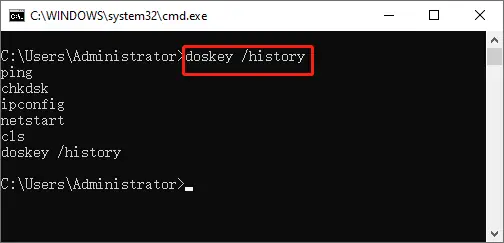
The solution to saving the Windows Command Prompt history using the DOSKEY utility is already well known, but this post will show how it can be done automatically every time you load and exit cmd.exe. By consensus the best workaround is to use the tool called Clink or Cmder (which uses Clink), however this article is simply meant to focus on doing exactly what the title says: Save Windows Command Prompt History on Exit. One of the caveats of using this method is that it requires you to type exit to close every cmd.exe session in order to save the history.
The credit goes to the user pbarney on this serverfault thread.
The Solution:
You can get the zip file that contains the code mentioned below here. This solution expects to use the %USERPROFILE% directory as the location where autoexec.bat resides.
- autoexec.bat
This is the BAT script that will be executed every time cmd.exe is ran. The primary purpose of this is to create theexitmacro that calls doskey.
@echo off
if "%AUTOEXEC%" EQU "1" goto :eof
SET AUTOEXEC=1
echo Loading macros.

rem  remap exit command to save a copy of the command line history to a log before exiting.
DOSKEY exit=(echo/ ^& echo **** %date% %time% ****) $g$g %USERPROFILE%\commands.log ^& doskey /history $g$g %USERPROFILE%\commands.log ^& ECHO Command history saved, exiting ^& exit $*

rem  review previous command line entries:
DOSKEY history=notepad %USERPROFILE%\commands.log

rem  copy the current directory to the clipboard
DOSKEY cc=cd^|clip ^& echo %%CD%% copied to clipboard- HKLM_CommandProcessor.reg
This creates the autorun registry string which runs the autoexec.bat script every time cmd.exe is executed.
Windows Registry Editor Version 5.00

[HKEY_LOCAL_MACHINE\SOFTWARE\Microsoft\Command Processor]
"AutoRun"="IF EXIST \"%USERPROFILE%\\autoexec.bat\" (CALL \"%USERPROFILE%\\autoexec.bat\")"
Step-by-Step:
- The first step is to ensure that
autoexec.batis in your user profile directory. - Run the
HKLM_CommandProcessor.regfile to create the registry string that will runautoexec.batevery time cmd.exe is ran. - Run a new command prompt session
- Type some commands to test
- In order to save the history to the commands.log file in your user profile directory you need to close each cmd session by typing
exit. Saving the history will not work if you skip this.
If you have any questions/comments regarding this article, click here or scroll down below (login isn't required to post comments and there's no waiting period).
