

There are several methods to hide local hard drives in XenApp or Terminal Services for your end users, but I feel only one is superior, group policy loopback processing combined with the new Group Policy preferences item-level targeting available in Server 2008. Instead of modifying all of your users individual GPO’s or configuring registry hacks or writing a bunch of bandaid scripts, you need only modify one GPO which is applied to your Citrix servers. Therefore this cuts down on administration and increases simplicity (KISS). Since I haven’t seen many articles explaining this method, here is my first post of March 2013.
Essentially what Group Policy loopback processing does is allow you to completely override or merge user or computer level policies on computers where it is enabled. For clarity I should point out now that this will not prevent users from reading/writing to the drive, as this is a procedure to HIDE the drive letter from the explorer.exe shell. This will help eliminate end user confusion as many people mistake C:\ in an ICA/RDP session to be their local C:\ on their desktop or laptop. In this post, I will hide the drive C:\ for all XenApp users who are not members of Domain Admins.
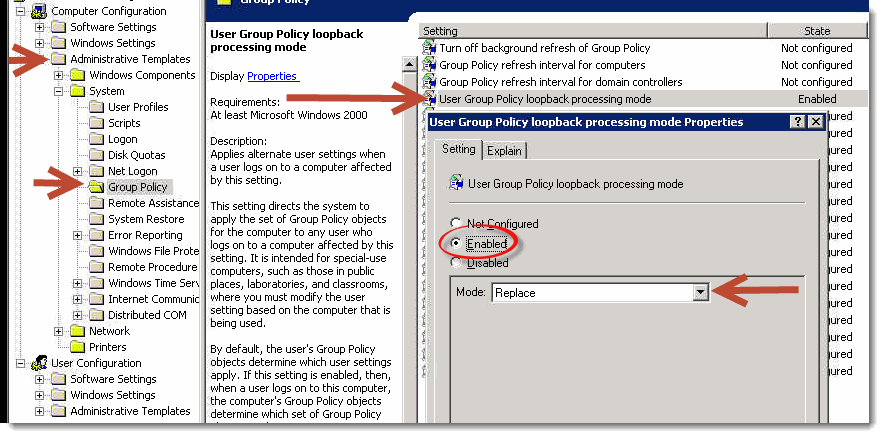
Create a GPO and link it to the OU where your XenApp/TS server is located. Edit and navigate to Computer Configuration > Policies > Administrative Templates > System > Group Policy and enable ‘User Group Policy loopback processing mode’ with the mode set to Merge. Setting it to merge instead of replace will ensure that all of your existing user policies will remain applied.
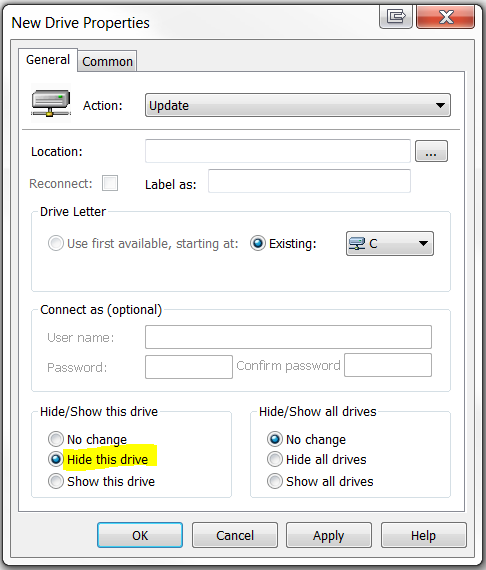
In the same GPO, navigate to User Configuration > Preferences > Windows Settings > Drive Maps. Right click in the white area New > Mapped Drive. Select the drive you wish to hide and set Hide this drive.
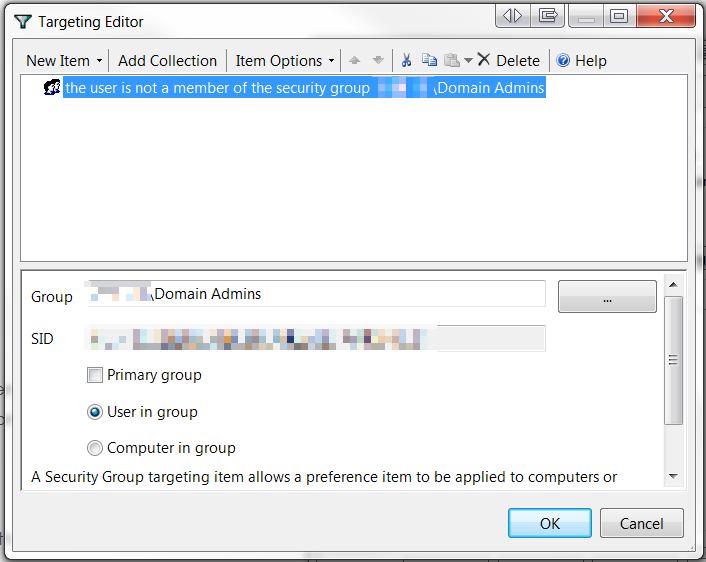
Go to the Common tab and select Item-level targeting. New Item > Security Group. Item Options > Is Not. Select your Domain Admins group or a group you wish this policy to not apply, such as your technical support team.
If you have any questions/comments regarding this article, click here or scroll down below (login isn't required to post comments and there's no waiting period).
 Travis Runyard
 Travis Runyard